
Dynamic category
What is a dynamic category?
Dynamic categories allow you to automatically organize products based on rules, instead of manual handling.
A dynamic category uses rules to automatically include products that match specific criteria. In contrast to a static category:
- Static category: Products are added manually
- Dynamic category: Products are added automatically based on rules
You can set rules based on criteria such as stock statusproduct tagsprices and more.Examples of use:
- “New arrivals” (products created in the last 30 days)
- “Products on sale”
- “Products from brand X”
- “Campaign of the month”
What does the lightning icon mean? ⚡
When you open a category and view its product overview, there is a small toolbar at the top – next to the Filter button. There you will find the lightning icon, along with a sort icon and a pencil icon.
The lightning icon is the shortcut to make the category dynamic. It has nothing to do with quick editing. If you click on it, you will go to the Dynamic Category Rules page, where you set up the rules that automatically populate the category.
How to distinguish the buttons in the toolbar:
Button | What it does |
|---|---|
Arrows up/down | Change the order (sorting) of products in the category |
Lightning | Make the category dynamic / open the rule setup |
Pencil | Edit the category (name, description, etc.) |
The lightning icon is only displayed if you have the subscription Smart or Plus. Directly below the category name, you will also see a label indicating whether the category is Static or Dynamic
Before you start
- A dynamic category must first be created as a regular (static) category
- Rules are added afterwards
- Existing products may be replaced (see section Important to know
How to make a category dynamic
- Create a category in the usual way
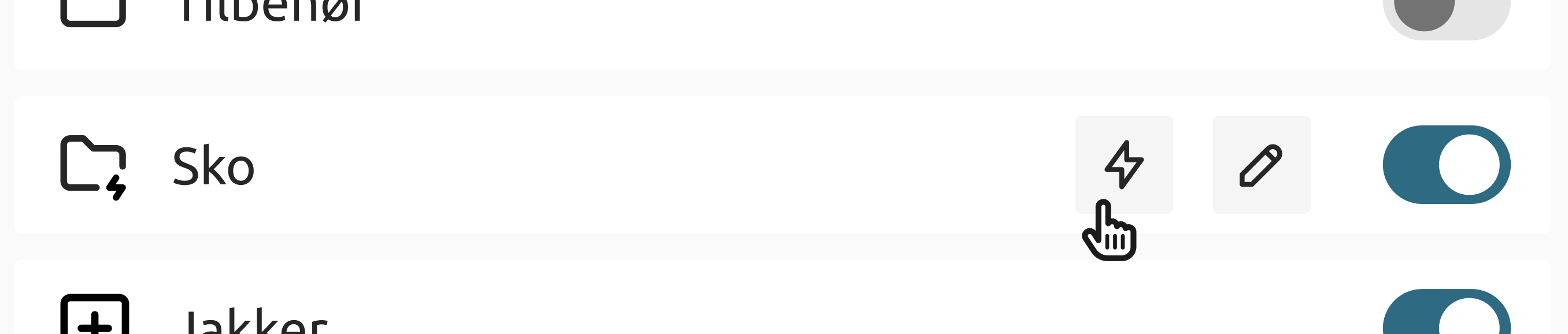
- Hover over the category in the sidebar
- Click on the lightning icon
- You will be taken to the rule setup page
- Add one or more rules
- Save
Defining rules
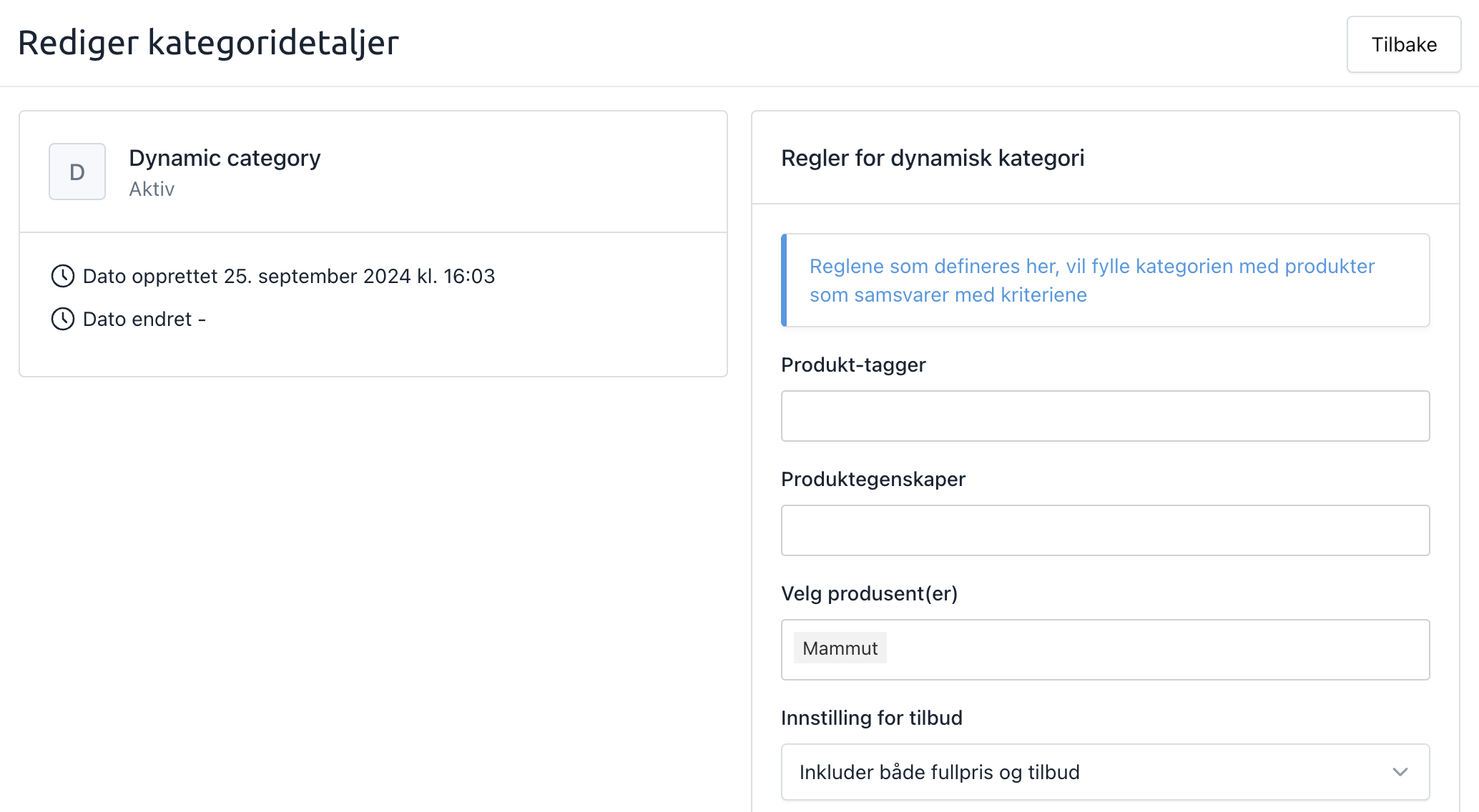
You can set up one or more rules. For a product to appear in the category, all rules must be met. This is because the rules use an AND condition (AND-condition).
You can at any time:
- Edit rules
- Remove rules
Available rule types
You can filter products based on:
- Product tagsCustom tags you have added (e.g., "Gift card")
Product properties - Custom attributes (e.g., material, size, type)Manufacturer
Offer setting - Show products on offer, full price, or both. This is great to combine with other filters.
- Sales price (excl. VAT)Products above or below a specific price
Gross profit - Products with desired margin. Useful when combined with offer prices.Days since product was created
Perfect for "New arrivals". Combine it with rules for manufacturers or gross profit for more specific views of new products. - Available stockProducts with a specific stock quantity
Discount percentage between - Filter within a specific discount range. Practical for selling off outgoing items.In active campaign
Products included in an active campaign - (Ideal for "Deal of the Month" – products are automatically added and removed when the campaign starts and ends)Customer club price
Products that have a special price for the customer club. Requires the customer club to be active. - Has customer club priceProducts that have a customer club price set, regardless of amount. Requires the customer club to be active.
Update frequency
Dynamic categories are updated via background jobs.
When you:
- Create rules
- Change rules
→ A job starts in the background.
With many jobs in the queue, it may take some time before the changes appear in the online store.
How to recognize a dynamic category
You can identify it in two ways:
- In the sidebar, it is displayed with a folder icon with a lightning bolt
- Inside the category, a label is displayed below the name:
- Dynamic
- Static
Preview a dynamic category
If you want to preview the category without customers having access:
- Click on edit (pencil icon) on the category
- Activate Hide this category in the webshop menu
- Use the category's direct URL for preview
Remember to deactivate the setting when the category is to be published.
Make a dynamic category static again
- Remove all rules from the category
- Once the rules are removed:
- The category becomes Static
- It retains the products that were in the category at the time the rules were removed
- You can then add or remove products manually as usual.
Important to know
- When you make an existing static category, which already contains products, dynamic, all products will be replaced with products that match the new rule set.
- Dynamic categories cannot be combined with manual product placement.