
Export and import themes and pages
Ever designed a cool page in one theme and then wanted to reuse it in a different theme?Thanks to the export and import feature you can easily reuse entire themes and single pages.
Exporting
Within the design builder you can export both the entire theme, or a single page.
Theme
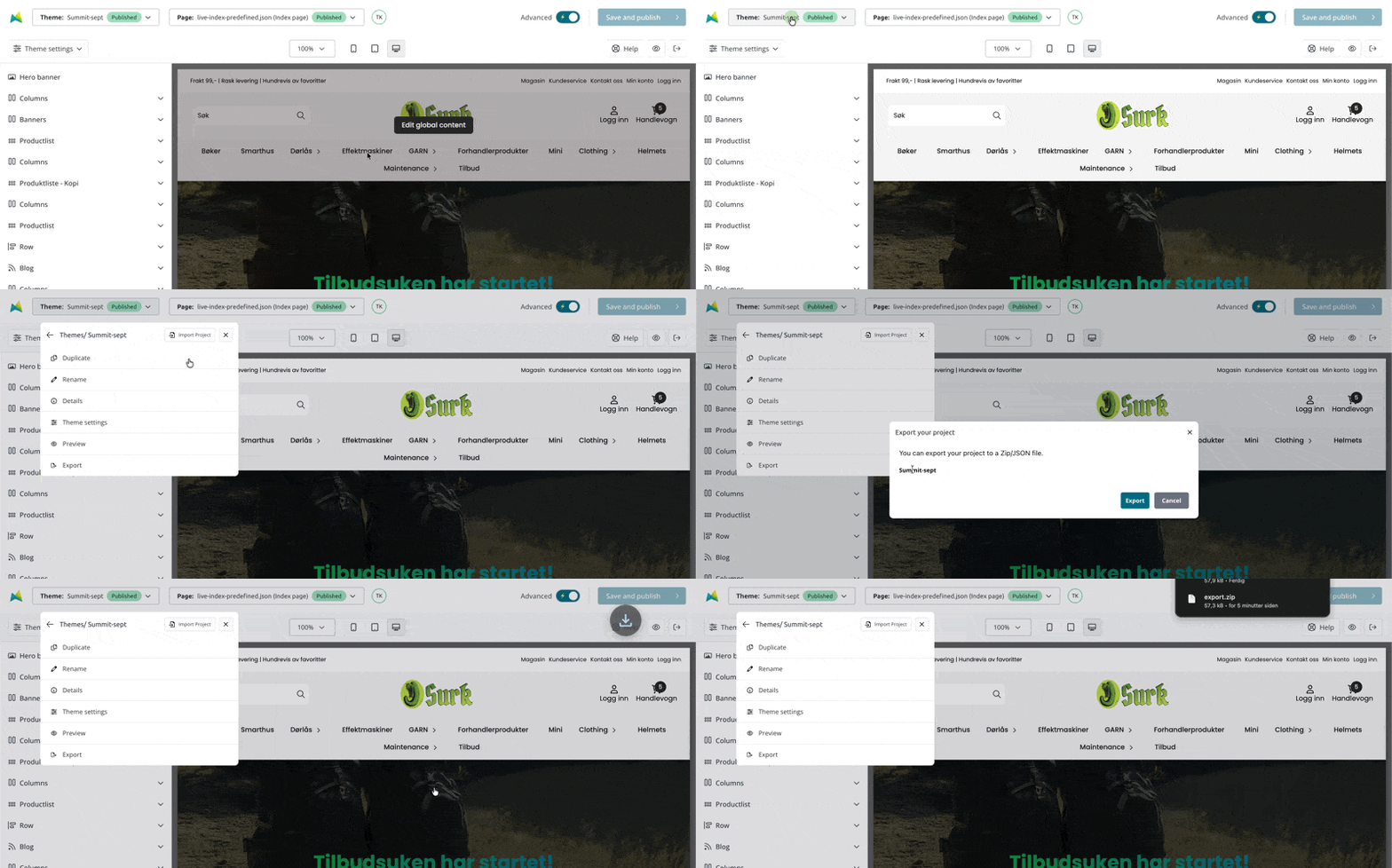
To export an existing theme follow the steps below:
- Open the theme selector
- Expand (open) the theme you wish to export. Note that you do not have to be in edit mode in order to export the theme.
- Click "Export" at the bottom of the theme options
- In the popup dialogue click "Export" to confirm and start the export.
A file, named export.zip, has now been downloaded. The file does not need to be unzipped. This file contains the JSON files for all the theme pages as well as a master file for theme settings.
Single page
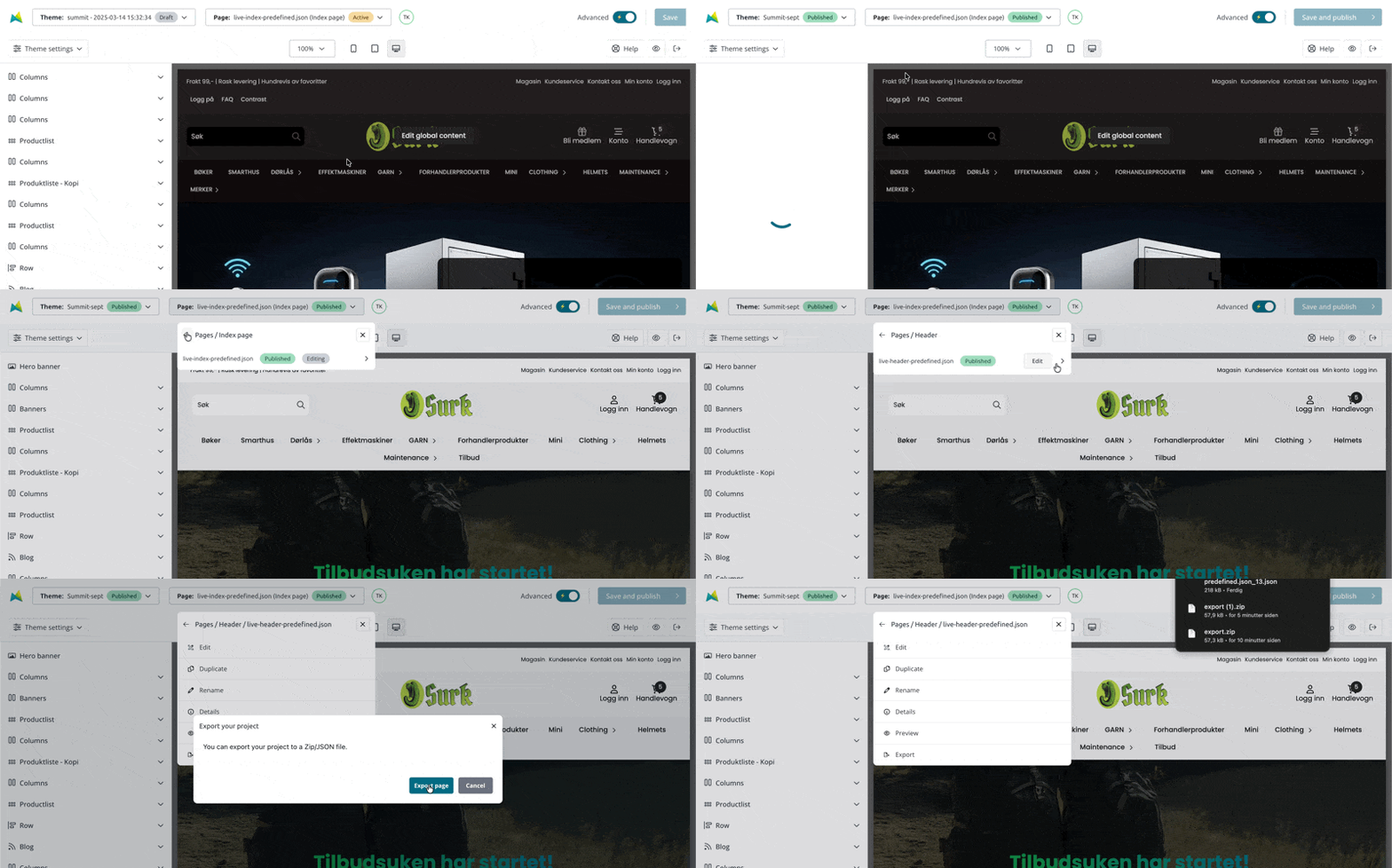
Exporting a single page is done more or less the same way as exporting a theme.
- Edit the theme where the page you wish to export exists
- Open the page selector and open the page type where the page is
- Find the exact page you want to export
- Open in, and click "Export" at the bottom of the page options
- In the popup dialogue click "Export" to confirm and start the export.
A single file, named page_export_pagename.json, has now been downloaded. This single JSON file consists all data for the specific page. Do not rename this file.
Importing
After exporting a theme or a page you can import the file to create new themes and pages.
Importing an entire theme is the same as duplicating a theme, meaning the import feature gives most value if you have several stores and with to export the theme from one store and import it into another.
Please note, all imports will automatically be imported as a draft and will not affect your current published design.
Theme import
To import an entire theme follow the steps below:
- Open the theme selector
- Click the "Import project" button at the top right
- Give the import a name. This will be the theme name for the imported theme.
- Select the
export.zipyou exported earlier. - Click "Import project"
When the import has completed you will see an alert in the browser confirming the import is complete.
The new imported theme is now available in the project selector.

Page import
Page import is just as easy as theme import. The system will automatically detect which page type you're importing and add it in the correct page template.
- Open the page selector
- Click "Import page" at the top right corner
- Select the
.jsonfile you exported earlier - Click "Import page"
- The page will now be imported into the correct template/folder. Meaning, if you importet a header page it will be imported into the header template/folder.
When the import has completed an alert will show in the browser confirming the import.
In order to see and access the newly imported page you have to refresh the design builder.
Naming pages
When importing pages the filename will be used as the page name. Please make sure you don't have an existing page with the same name, as this will stop the import.