
Acendy App
What can you do in the Acendy app?
With the Acendy app, you can quickly and easily:
- Receive push notifications for new online store orders
- View sales overview for the day, week, and month
- View and open the store’s 15 most recent orders
- Manage customer inquiries in the inbox
- Use your mobile camera to scan barcodes and look up products
- Choose which stores to fetch data from if you have multiple stores
⚠️ Note
To limit data traffic, it is only possible to retrieve data from a maximum of 5 stores at the same time.
Getting started
Download the app
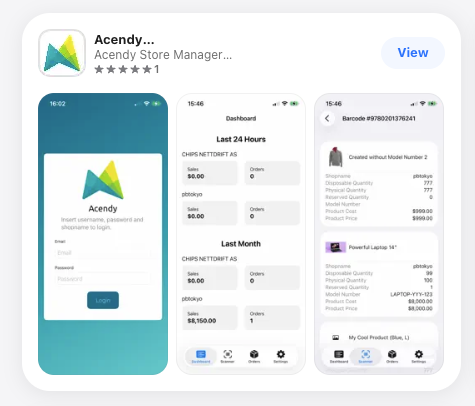
Download the Acendy app from:
- App Store (iOS)
- Google Play (Android)
Log in
Once the app is installed:
- Open the app
- Log in using the same username and password as in the control panel
Using the app
The app consists of four main sections:
- Dashboard
- Scanner
- Orders
- Inbox
- Settings
Dashboard
The dashboard provides a quick overview of your sales.
Here you can see:
- Total sales for the last 24 hours
- Total sales for the last 30 days (previous month)
This makes it easy to monitor your store’s performance directly from your mobile device.
Scanner
The scanner feature allows you to use your phone’s camera to scan product barcodes.
When a barcode is scanned, you will see product information such as:
- Inventory status
- Available stock
- Physical stock
- Reserved stock
- Item number (SKU)
- Cost price
- Sales price
This makes it easy to look up product and inventory information directly from your phone.
Orders
Here you can see an overview of the 15 most recent orders in your store.
You can customize the view by:
- Selecting which orders to display:
- Online store
- POS (point of sale)
- Both
- Sorting by:
- Order ID
- Date
- Newest
- Oldest
- Grouping by:
- Order status
- Store name (if you manage multiple stores)
You can view orders from up to 5 stores simultaneously.
Inbox
In the Inbox, you can manage customer inquiries directly in the app.
You can:
- View and reply to customer messages
- Receive push notifications for new inquiries
- Filter conversations
- Update:
- Status
- Priority
- Assignee
Settings
In Settings, you can:
- Select which stores the app should fetch data from
- Enable/disable push notifications for:
- Inbox messages
- New online store orders
- View app information (such as your Acendy App ID)
- Log out
Important to know
- You can fetch data from a maximum of 5 stores at the same time
- Push notifications for new orders apply to online store orders only (not POS)
- Price formatting can be set to follow a local standard (e.g. Norwegian), even if the app is used in another language
What should I do if this does not solve the problem?
If you experience issues with the app:
- Log out and log back in
- Update the app to the latest version
If the problem persists, contact customer support and include:
- A description of the issue
- The device you are using (iOS / Android)
- Your Acendy App ID
- The time the issue occurred