Section: Hero banner
With hero banners, you can easily add a large banner at the top of your online store. You can then add text, links, overlays (color over image), etc. to this banner.
Add section
- Open the page template where you want to add sections
- Click on “+ Section” at the bottom of the page menu and select “Hero banner.”
- Then drag the section to rearrange it.
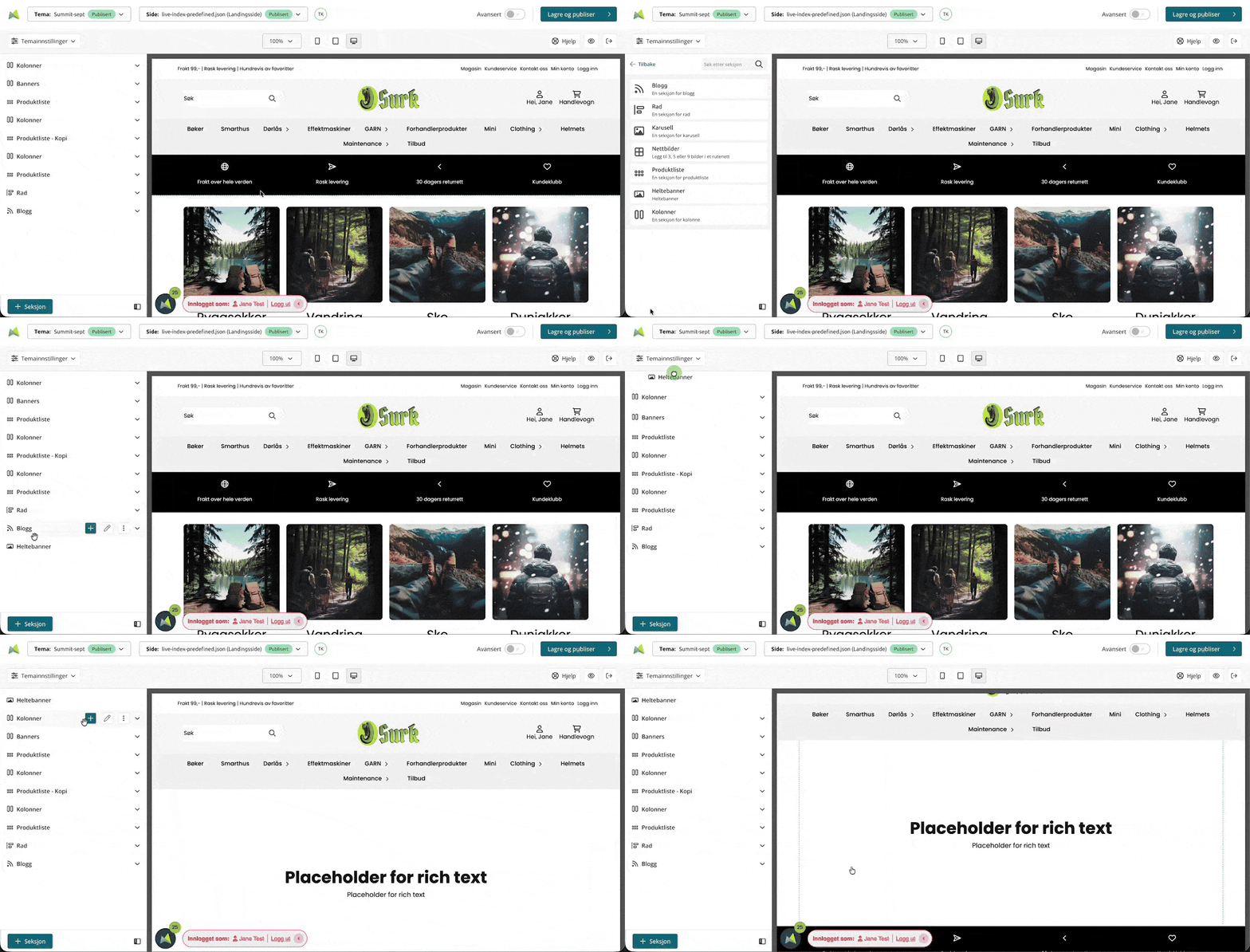
Edit section Basic
Open customization by clicking on the “pencil” button for the section.
When you are in basic mode (not advanced), you can change simple things such as the background image, text color, and text content, as well as add links and alternative text.
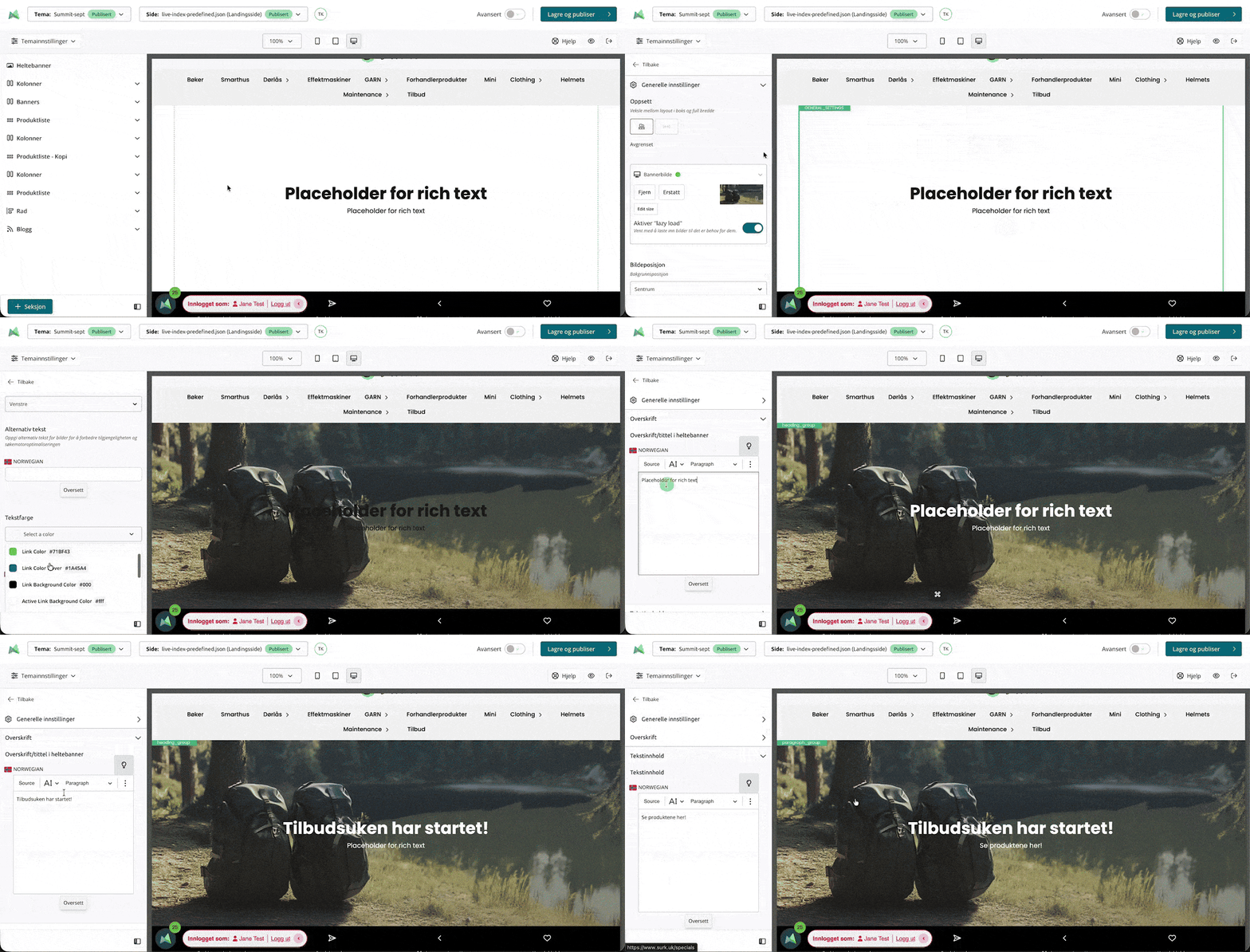
Edit section Advanced
General settings
When you are in advanced mode, even more settings are available. In “General settings,” in addition to changing the image, you can also adjust the position of the text above the banner image, rounded corners, banner height (computer and mobile), and visibility.
Parallax effect
By turning on this feature, you can choose between two parallax effects:
- Static background when scrolling: The image is static when you scroll, while the text moves. Note that this effect will make the banner image appear larger as it must occupy the entire height of the online store.
- Animated text: When you scroll down, the text moves across the image. You can choose whether the text should move up (UP) or down (DOWN).
Gradient heading
Under the advanced settings for “Heading,” you can select “Use gradient color.” This allows you to set two colors for the heading, as well as the angle of the gradient. This can help make the banner more visible.

Banner overlay
Banner overlay allows you to add a single-color overlay over the background image and then set its transparency. This means that you can, for example, darken the image so that the text is more visible: