
Email templates: Intro to email builder
What are email templates?
Email templates are the pre-designed emails your store sends automatically to customers — things like order confirmations, shipping notifications, password resets, and more. You can customise every template: change the text, add your logo, adjust colours, and insert dynamic placeholders that fill in real order or customer data when the email is sent.
Getting to the email template editor
- Log in to your store's admin panel.
- In the left-hand sidebar, click Email.
- Click Templates.
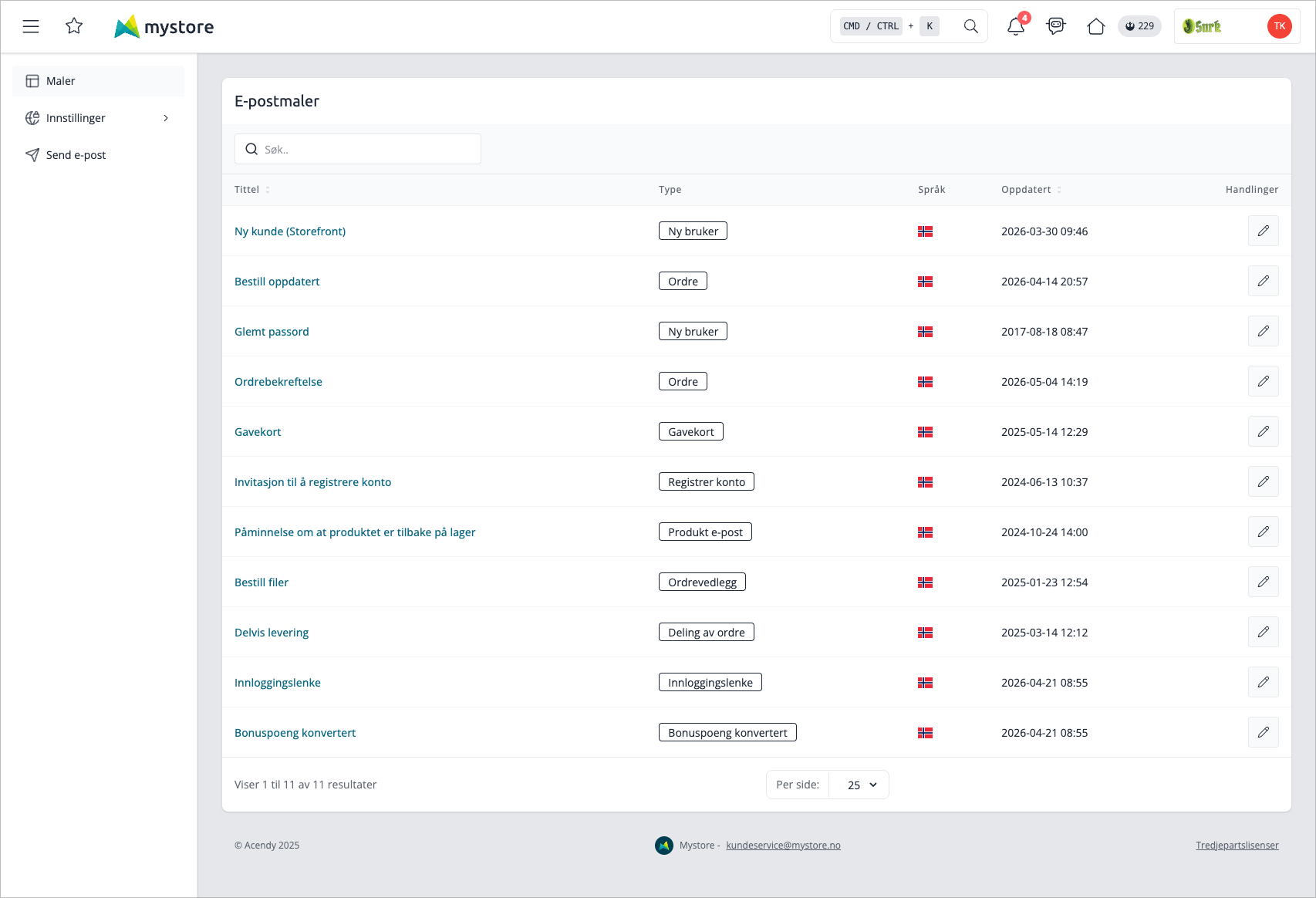
You will see a table listing all available templates, showing the template name, type, which languages it exists in (shown as flag icons), and when it was last updated.
Tips and best practices
- Keep subject lines short — under 50 characters works best on mobile.
- Use the Logo block instead of embedding your logo as a plain image — it stays up to date if you change your logo in store settings.
- Test before publishing — always send a test email to yourself and check it in both desktop and mobile inboxes.
- Save drafts frequently — draft saves are free; publishing is what customers see.
- Use conditional blocks — some templates support
[IF TRACKING_NUMBER]...[END TRACKING_NUMBER]sections that only appear when the data is present, keeping emails clean.