
Quick Edit
Get started
Before you start editing, you should narrow down the selection so that you only see the products you need to work with. This is done via the landing page for Bulk editor.
- Use filters, search, and column selection to find the correct products.
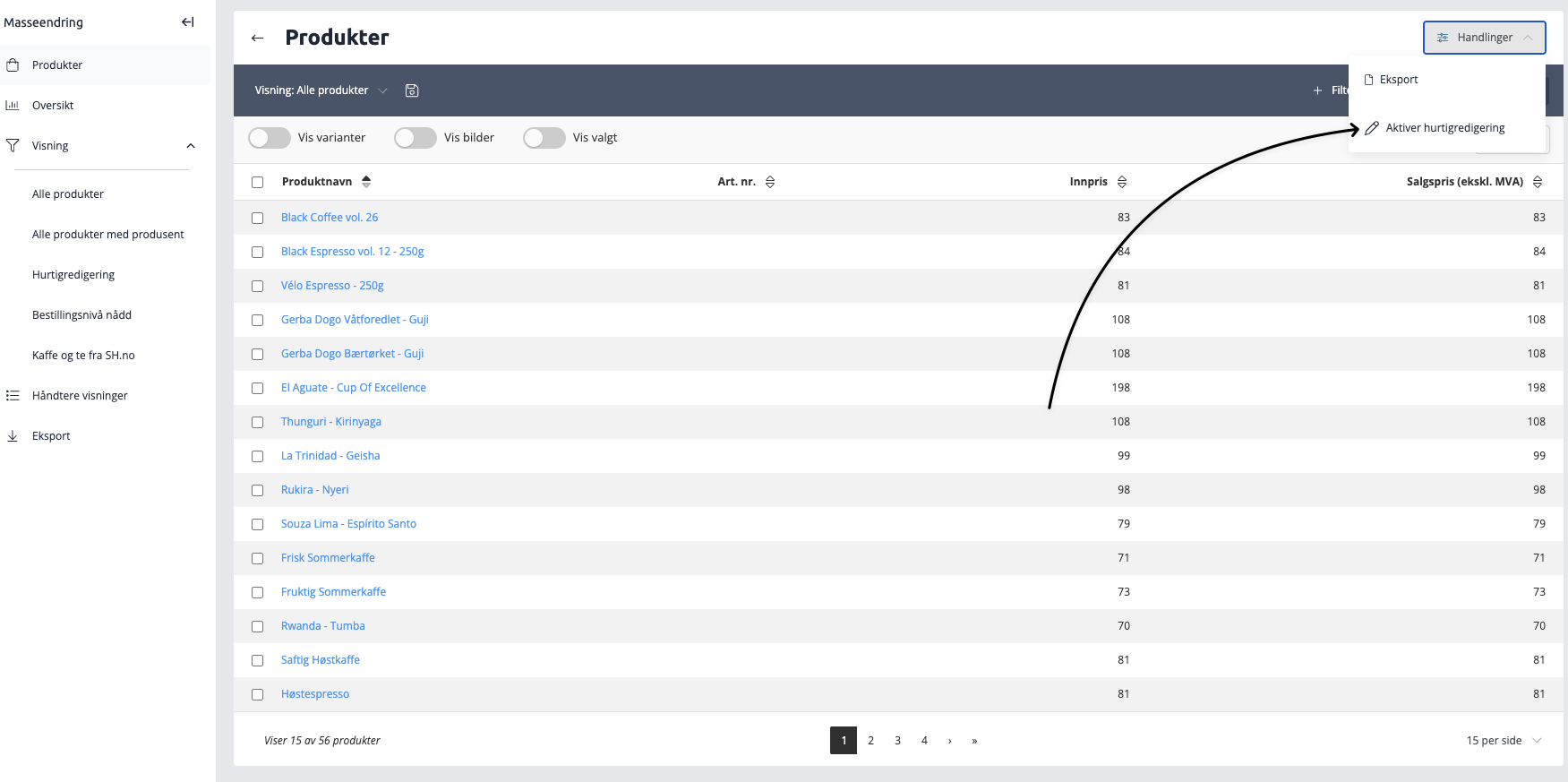
- Click the Actions menu.
- Select Activate quick editing.
How to edit products
When the function is activated, the fields that can be changed will stand out from those that are read-only.
- Identification: Editable fields have a distinct visual appearance.
- Change indicator: When you enter a new value in a field, the border is marked with a turquoise color. This indicates that the change has been registered, but not yet saved to the database.
Save and complete
The changes will not take effect until they are confirmed.
- Click the button
Save changeswhen you are done. - The system starts an automatic job that updates all products in the background.
- A progress indicator keeps you updated on the status of the update.
Overview of change history (Log)
All changes are logged so that you have full control over what has been done. You can find this overview by going to Overview in the sidebar menu. The log is divided into two categories:
Category | Description |
Actions | Displays large batch jobs and bulk edits performed across many products. |
Quick Edit | Displays each quick edit session grouped by date. |
Views
By using custom views, you can tailor your work so that you always have quick access to the products and columns you work with most.
Create custom views
If you frequently make changes to selected products, you can easily create custom views.
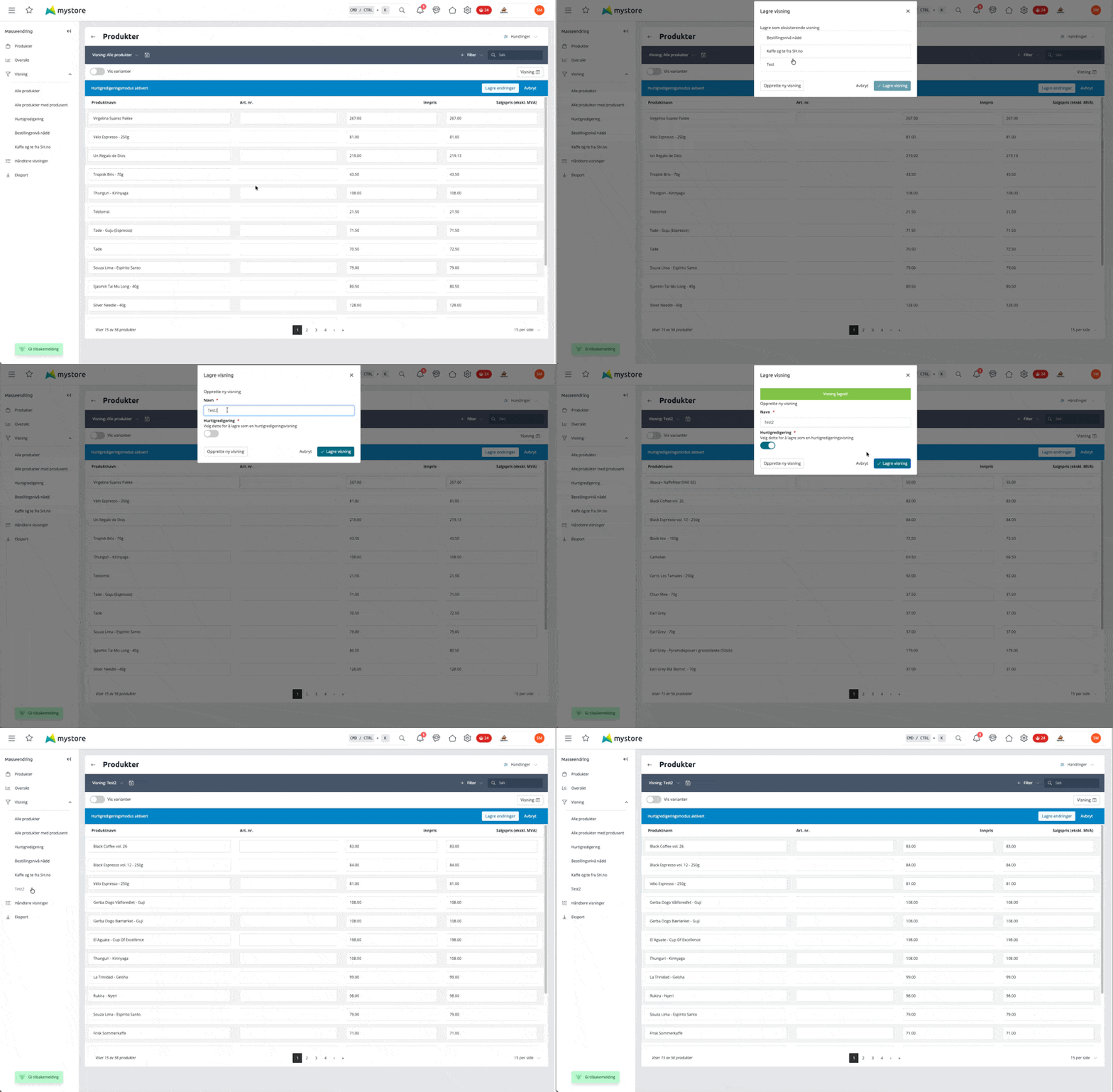
- Make the desired adjustments with filter and column selection
- Click the "Save" icon in the toolbar
- Select
Create new view - Give the view a descriptive name that is easy to recognize
- Check the box for "Quick Edit"
- Click Save
Pre-saved view: Quick Edit
To help you get started quickly, we have already prepared a standard view called Quick Edit. This contains the most commonly used columns for efficient data updating:
|
|
|
|
|
|
|
|
Selection Customization
Remember that no views are locked. You always have full freedom to:
- Add or remove columns as needed.
- Adjust the product selection by using advanced filters.
- Update existing views or save entirely new variants.
This ensures that you always have a setup that suits the specific task you need to perform.
Keyboard shortcuts for faster navigation
You can navigate efficiently in the table using the keyboard:
- Enter: Jumps to the same field in the row below.
- CTRL + Enter: Jumps to the same field in the row above.