
Email templates: Editing a template
Editing a template
Click the Edit (pencil) icon on any row to open the visual editor.
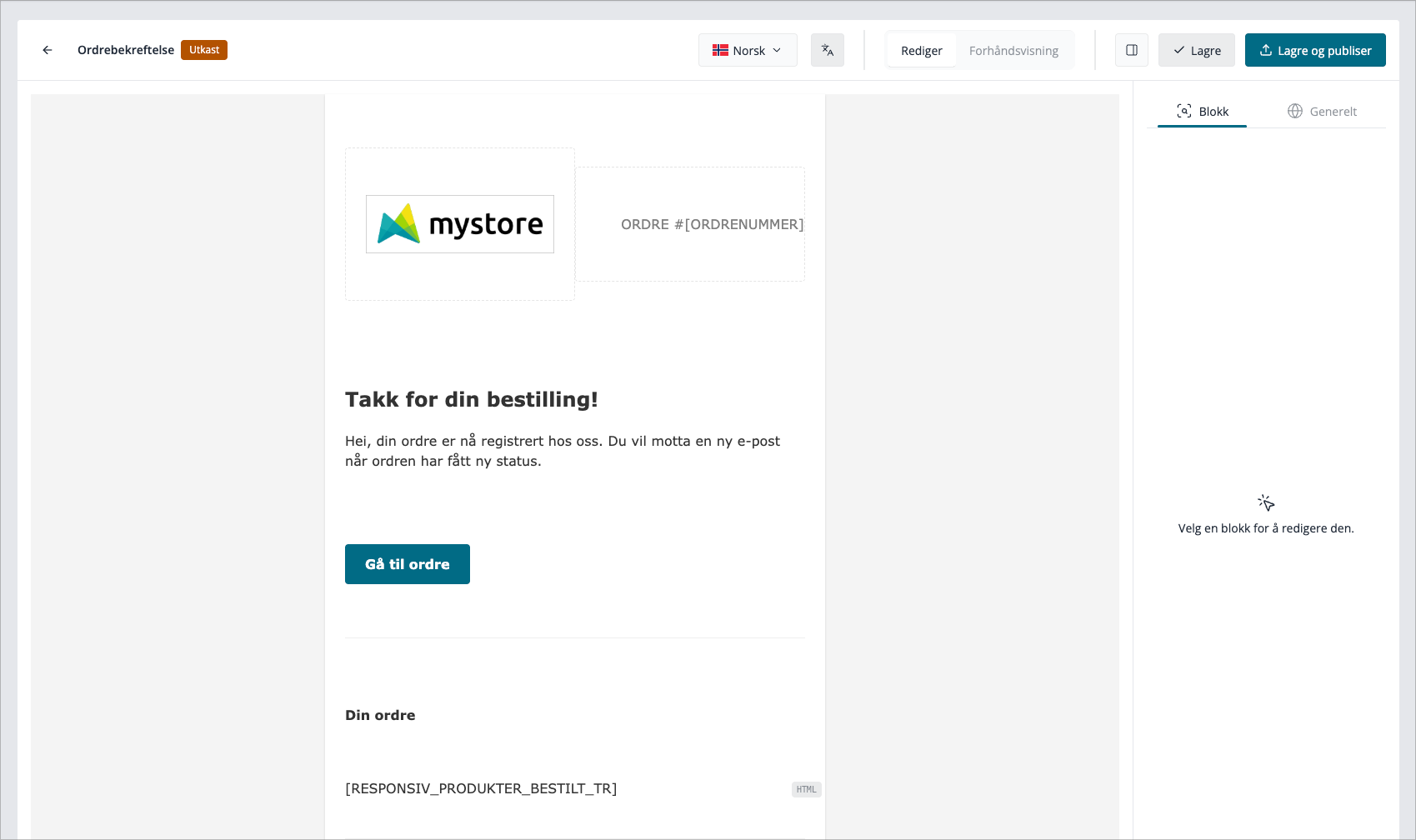
The editor has three main areas:
Area | What it does |
|---|---|
Canvas (centre) | A live preview of your email. Click any block to select it. |
Block panel (left) | Add new content blocks by clicking the + button. |
Settings panel (right) | Adjust the selected block's appearance, or switch to Global settings to change the whole email. |
Adding and editing content blocks
Each part of your email is a block. Available block types:
Block | Use it for |
|---|---|
Text | Body copy, paragraphs, headings |
Image | Product images, banners |
Button | Call-to-action links (e.g. "View your order") |
Logo | Your store logo — pulled in automatically |
Columns | Side-by-side content layout |
Spacer | Vertical whitespace between blocks |
Divider | Horizontal rule between sections |
HTML | Custom raw HTML for advanced users |
To add a block
Click the + button between existing blocks (or at the top/bottom of the canvas). Choose a block type from the menu.
To edit a block
Click the block on the canvas. The settings panel on the right will update to show that block's options (text content, padding, background colour, font size, etc.).
To move, copy, or delete a block
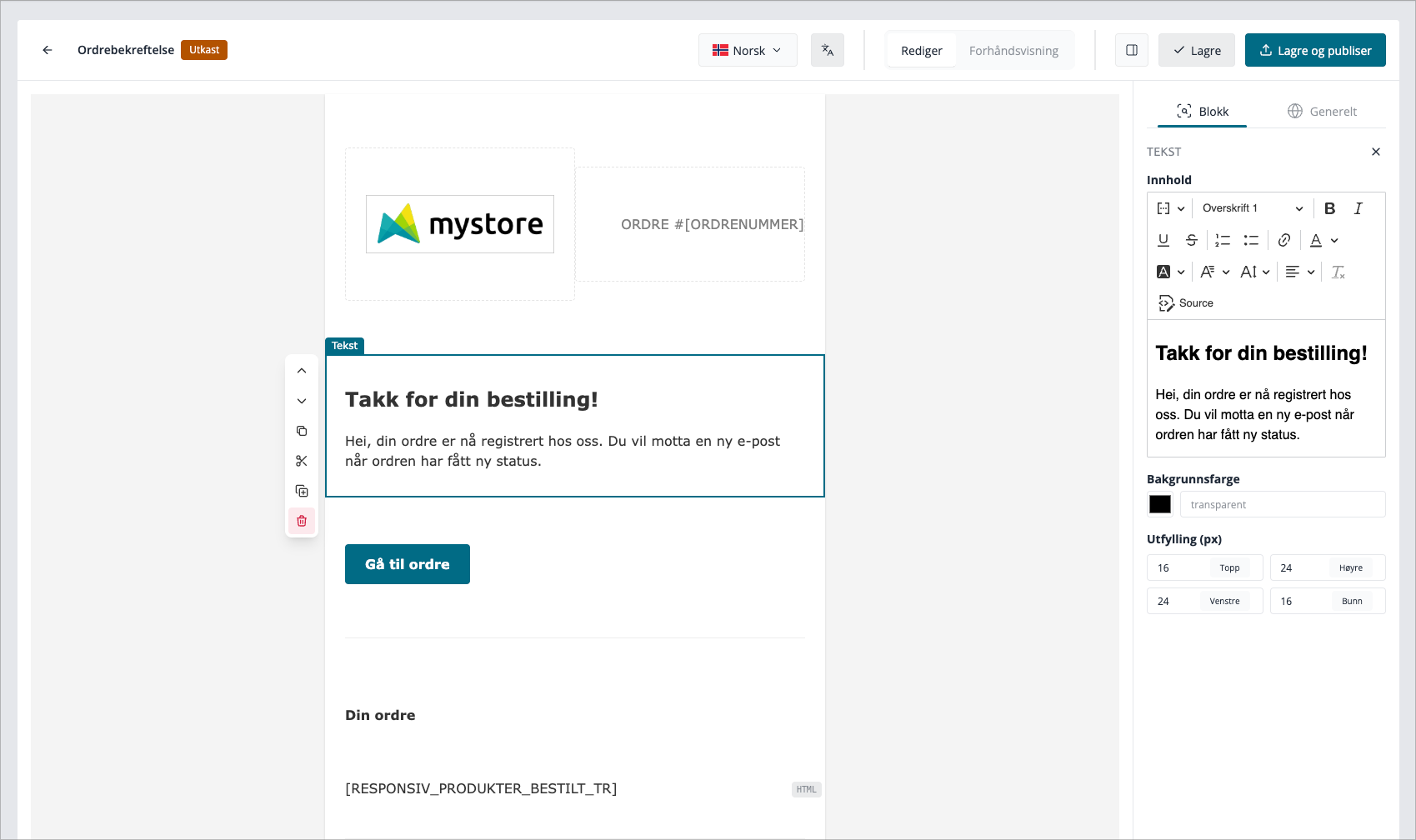
Hover over a block to reveal the action icons in its top-right corner:
- Drag handle — reorder by dragging
- Duplicate — copy the block in place
- Delete — remove the block
Block actions in detail
Every block has a set of action buttons that appear when you hover over it. Here is what each one does.
Move up / Move down
Moves the selected block one position up or down within its current container (the main email canvas, or a column inside a Columns block). The block swaps places with its neighbour.
- A block at the very top cannot be moved up.
- A block at the very bottom cannot be moved down.
- Moving a block inside a column only reorders it within that column — it does not move it to a different column.
Duplicate
Creates an exact copy of the block and inserts it directly below the original. All content and styling is copied. The new block is selected automatically so you can edit it straight away.
Use this when you want a second block with a similar layout — for example, two buttons with the same styling but different labels.
Copy
Copies the block to a clipboard held in the editor. A notification confirms the block has been copied. The original block stays in place and is unaffected.
The clipboard holds one block at a time. Copying a new block replaces whatever was previously on the clipboard.
Cut
Works like Copy, but marks the block for removal from its current location. The block stays visible in the canvas (so you can see what you are moving) until you paste — at which point it is removed from its original position and inserted at the new one.
A notification confirms the block has been cut. If you cut a block and then copy a different one, the cut is cancelled and only the copy is kept.
Paste
Inserts the block currently on the clipboard. Where it lands depends on how you paste:
How you paste | Where the block appears |
|---|---|
Click Paste from a block's action menu | Inserted immediately below that block |
Click the Paste button inside a column | Appended to the end of that column's block list |
Click Paste in an empty area of the canvas | Appended to the bottom of the email |
After pasting, if the block was cut (not copied), it is removed from its original location at this point — completing the move. If it was copied, the original remains untouched and you can paste as many times as you like.
Delete
Removes the block permanently from the canvas. There is no undo button, so use this with care. If you are unsure, use Cut instead — the block stays on the clipboard and can be pasted back.
Moving a block into (or out of) a column
The Columns block contains two or more side-by-side columns, each of which can hold its own stack of blocks.
Copying a block into a column
- Hover over the block you want to move and click Copy (or Cut if you want to move it).
- Click on the Columns block to expand it and reveal its columns.
- Hover over the target column and click the Paste button that appears inside it.
The block is inserted into that column. If you used Cut, the original is removed automatically.
Moving a block out of a column
- Hover over the block inside the column and click Cut.
- Scroll to where you want the block in the main canvas.
- Hover over the block you want to paste after and click Paste, or use the paste area at the bottom of the canvas.
Limitations
- Move up / Move down only works within the same container. You cannot use the arrow buttons to move a block from a column into the main canvas or into a different column — use Cut and Paste for that.
- Duplicate always duplicates within the same container. A block inside a column will duplicate within that same column.
- The clipboard holds one block at a time. You cannot copy multiple blocks at once.