
Debt report
How to Find the Report
To access the debt overview, navigate to: Menu > Reports > Debt
Overview of the Three Tabs
The report is divided into three sections to help you track the status of a gift card or credit note.
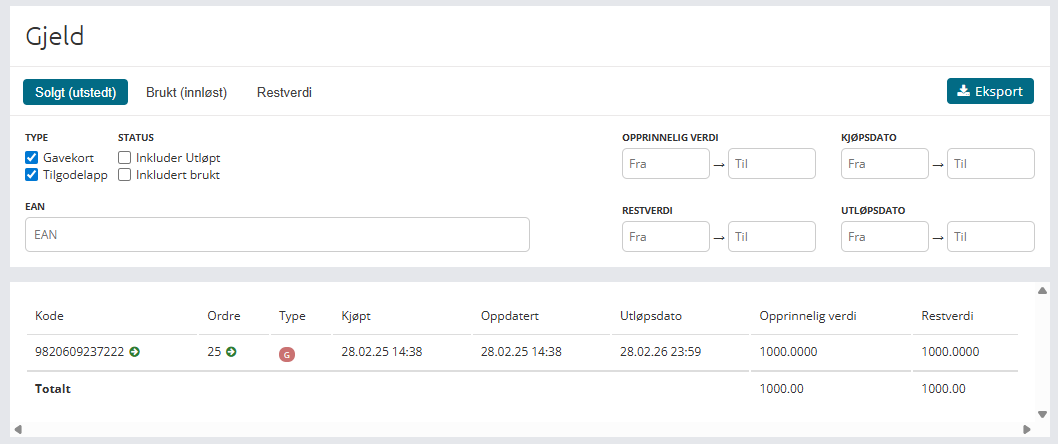
1. Sold (Issued)
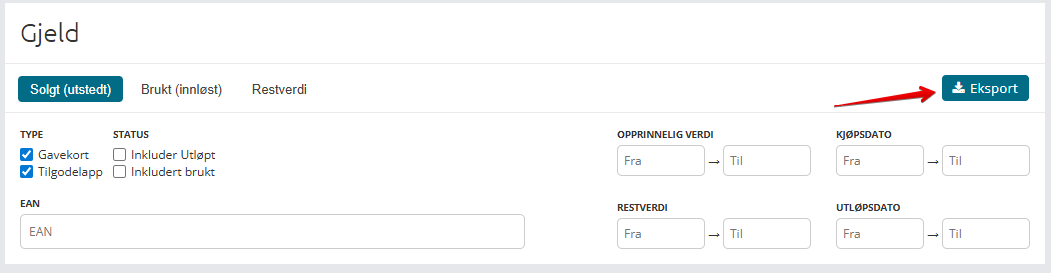
This tab shows all debt that has been created. You can customize the view using the following filters:
Type: Choose between Gift Cards or Credit Notes.
Status: Choose whether to include expired or used items.
Search: You can search by the EAN code of the gift card/credit note.
Other Filter Functions: Filter by original value, purchase date, remaining value, or expiry date.
2. Used (Redeemed)
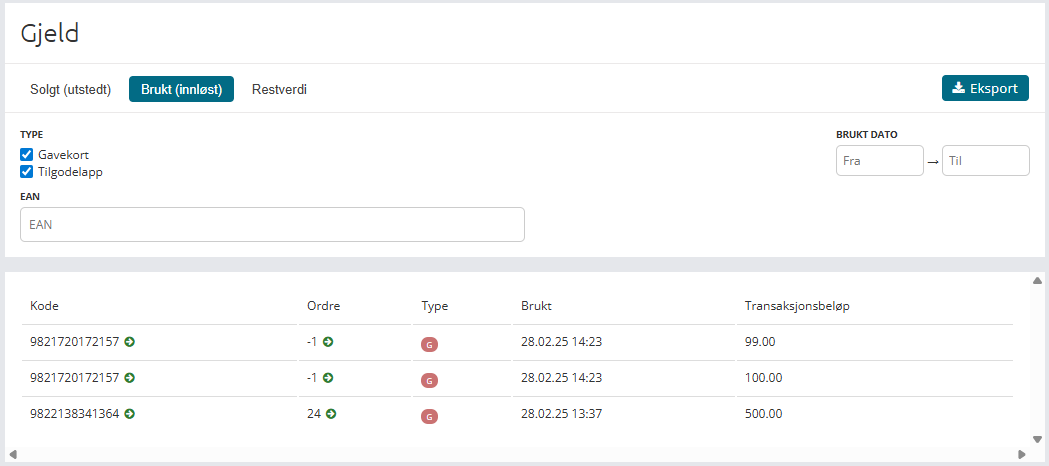
This tab shows debt that has already been utilized by the customer.
Type: Gift Card or Credit Note.
Search: You can search by the EAN code of the gift card/credit note.
Date: Filter based on the date the debt was used.
3. Remaining Value
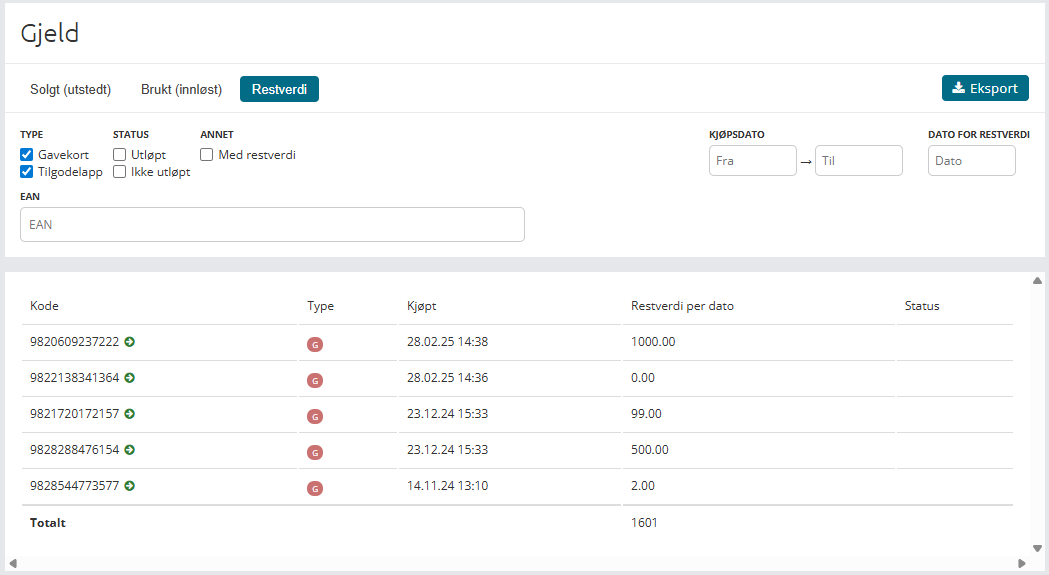
This tab is often used by accounting to find unused debt in the system. Here you have five options:
Type: Gift Card or Credit Note.
Status: Expired or Not Expired.
Other: Filter for items with a remaining value.
Search: You can search by the EAN code of the gift card/credit note.
Date: Purchase date or the date for remaining value can also be used.
View Details and Edit Information
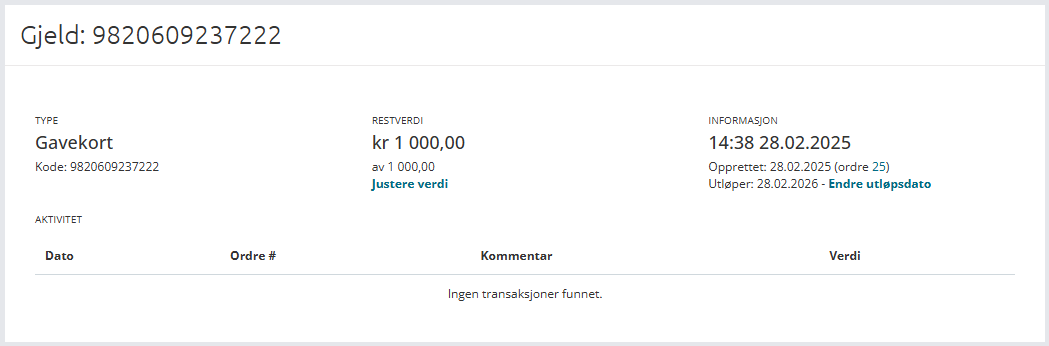
Once you have found the debt you wish to check, you can see general information in the list below. For deeper insight, click the green arrow next to the EAN code.
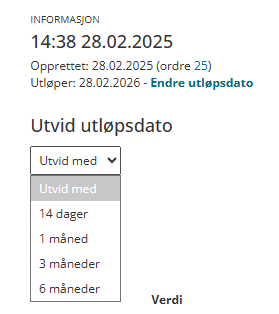
In this detailed view, you can: Adjust the value of the debt, change the expiry date (extension), and see which order is linked to the issued debt.
Important Notes Regarding Price Adjustments:
Before you adjust the gift card or credit note, please be aware of the following: You must manually update the new value in external systems. This function will not do it for you. To change the value, you must provide a reason in the note field. The log will also show which user account was used to make the change. You can only adjust the value downwards, and not below 0.
Date Extensions:
When extending a date, you can adjust within set time intervals: 14 days, 1 month, 3 months, and 6 months.
Exporting the List
You can export the list after your filtering is complete. Simply click Export in the top right corner. This will generate an Excel file containing the most important columns, which will download immediately.
The file includes: Code (EAN), Order No, Type, Purchase Date, Expiry Date, Original Value, and Remaining Value.
