
Transfer orders from control panel to POS
This article explains how to enable and manage the Pick Up in Store (Pay in Store) feature. This workflow allows customers to place orders online and complete their payment physically at your retail location using your Point of Sale (POS) system.
Prerequisites
Contact Mystore Support torequest that they instal the module for "Pick up in store."
Step 1: Configure the Shipping Method
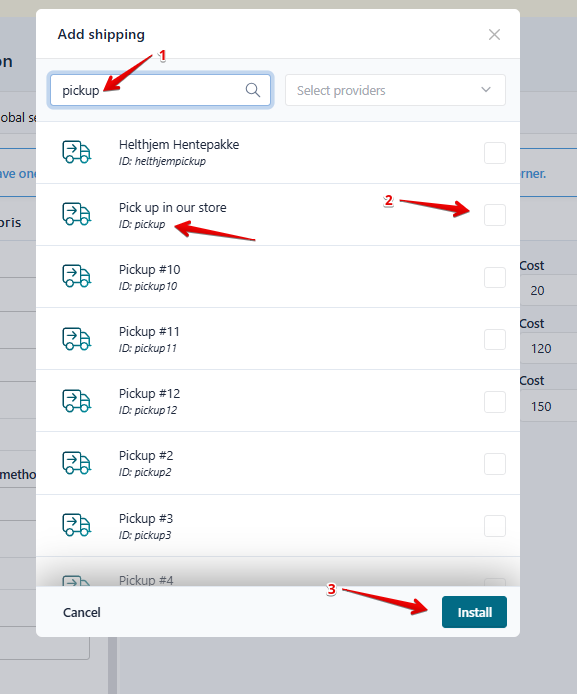
You must ensure that Pickup is an available shipping option in your store settings.
- Navigate to the Menu.
- Select Configuration.
- Select Shipping Methods.
- Locate the section labeled Add Shipping Methods.
- Find the shipping method ID Pickup and ensure it is added and active.

Step 2: Link the Order to your POS
To make an online order visible and payable on your POS system, you must manually update the payment method within the specific order.
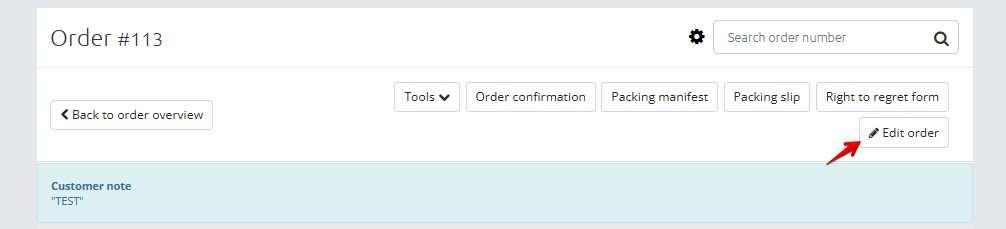
- Navigate to Menu > Orders/Customers > Process Orders.
- Locate the specific order you wish to process.
- Click Details and then select Edit Order.
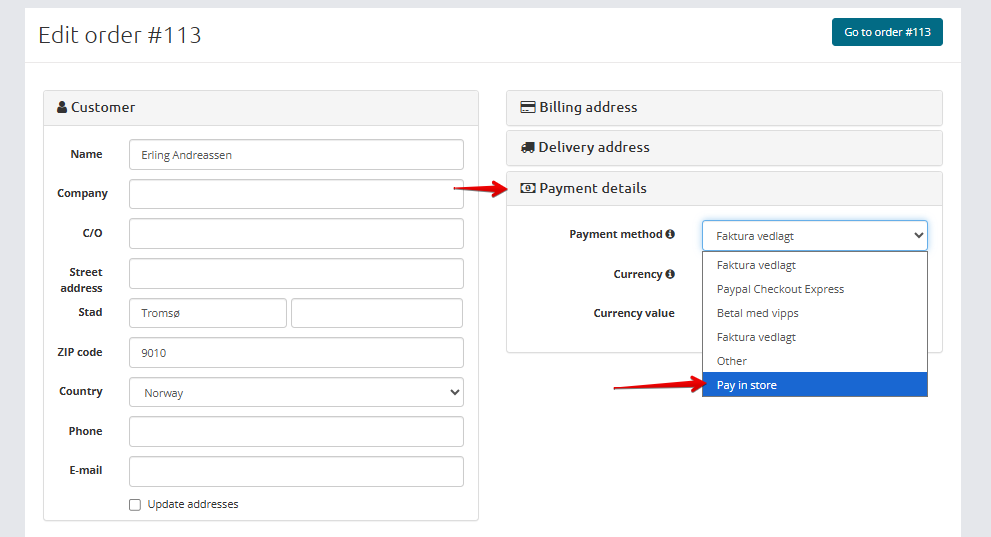
- Locate the Payment Details.
- Change the current payment method to Pay in Store.
- Save your changes.
Step 3: Processing the Payment in POS
Once the order has been updated in the backend, you can finalize the transaction at your physical register.
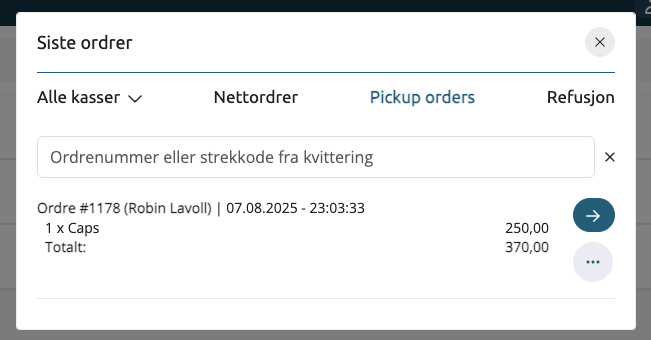
- Open your POS system.
- Click Menu.
- Select Last Orders and then Pickup Orders.
- Locate the customer's order in the list.
- Select the order to pull it into the register.
- Complete the sale using the customer's preferred method, such as card or cash.
Important Usage Notes
[!IMPORTANT] This feature is not compatible with automated payment providers like Klarna or Vipps. It should only be used for Invoice orders that were created manually by staff or specifically selected by the customer for in-store settlement.