
Price adjustment for customer club members
Price adjustment for loyalty club members
Member price is a separate, fixed price that only logged-in loyalty club members receive. This article explains how the member price works, how to set it, and how to remove it again.
How member prices work
A member price is set on the product, next to the regular price. The two prices exist independently: when you change the regular price, the member price does not follow. It remains at the amount you set last.
A member price is only displayed and used when it is lower than the regular price (or lower than the offer price, if the product is on offer). This results in three states:
The member price is … | What happens |
|---|---|
not set, or set to No member price. Members pay the regular price. | lower |
than the regular priceThe member price is displayed in the store and members pay it. | equal to or higher |
than the regular priceNothing is displayed — but the price is there, waiting. If you increase the regular price later, the member price suddenly becomes the lowest, and then it takes effect. |
The last state is the one that surprises most people. See «Why does a club price appear when I increase the price?» below.
Where the member price is displayed
- In the store — on the product page, and in product boxes in lists if club price display is enabled under Design → Global settings → Product (advanced mode). There you also control the text in front of the price, color, and background.
- In the administration — products with an active member price get the label Club price in the product list. The label disappears again as soon as the member price is no longer the lowest.
- In dynamic categories — the rule «Has customer club price» picks up products using the same logic: the member price must be lower than the regular price for the product to be included in the category.
Set member price for one product
Use this method when you want to give member prices on selected items.
- Open the product
- Find the field prices for customer groups
- Enter the price for the customer group Customer club
- Click Save changes
Enter the amount with a period, not a comma: 79.90, not 79,90. A comma is read as if the digits after it disappeared, and you end up with 79.
The row has two fields, one excl. VAT and one incl. VAT. If you fill in one, the other is calculated automatically. The price excl. VAT is what is saved.
Set member prices for many products simultaneously
The bulk processing calculates a new member price for all products you select, and enters it. This is a one-time action — it runs the moment you save, and it does not continue to update prices afterwards.
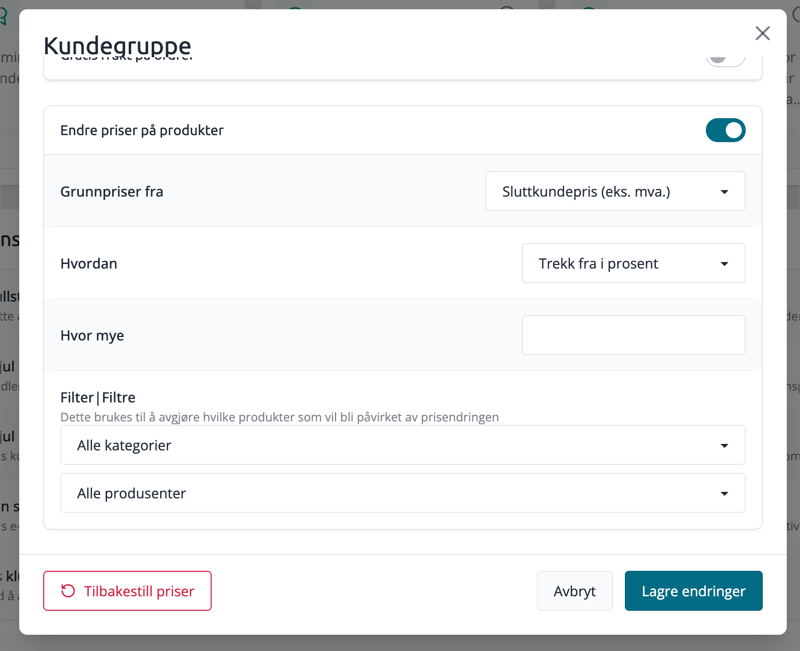
- Go to Customer Club → Customer Group → Manage
- Activate Change prices on products
- Select Base prices from — which price the adjustment should be calculated from
- Select How — the adjustment method
- Enter the amount or percentage in How much
- Limit with All categories and All manufacturers if only parts of the selection should be affected
- Click Save changes
The job is running in the background. For large product catalogs, it takes some time before all prices are updated.
Base prices from
Option | Calculates from |
|---|---|
End customer price (excl. VAT) | Ordinary sales price without VAT. |
Purchase price | The purchase price of the product |
Current group price (excl. VAT) | The membership price currently set |
Current offer price (excl. VAT) | Active offer price. Products without an offer are skipped |
Customer group: name | The price another customer group has, if you have multiple groups |
How
Option | Effect |
|---|---|
Subtract by percentage | Reduces the base price by a percentage |
Subtract by amount | Reduces the base price by a fixed amount |
Add by percentage | Increases the base price by a percentage |
Add by amount | Increases the base price by a fixed amount |
Filter
The filters determine which products are affected. You can filter by category, manufacturer, or both. The default selections "All categories" and "All manufacturers" apply to the entire product catalog.
If only a few products should have a membership price, it's often easiest to first put them in a separate category and filter by that. Use Bulk editor and select Add when placing the products in the category — they will then retain the categories they are already in.
Never leave "How much" empty or at 0
With an empty or zero adjustment, the member price becomes identical to the base price. If you select "End customer price" as the basis and leave "How much" empty, each product will have a member price that is exactly the same as the regular price.
It looks like nothing happened — because a member price that is not lower is not displayed. But the price is saved, and it is waiting for the next time you change the regular price.
This is not the way to reset member prices. Use Reset prices instead.
Remove member prices
All at once
- Go to Customer Club → Customer Group → Manage
- Click Reset prices in the bottom left
- Confirm
All custom member prices will disappear, and members will pay the regular price. The Customer Club and memberships are not affected. This action cannot be undone and applies to the entire product catalog — you cannot reset just one category.
A single product
- Open the product
- Set the field for the customer group Customer Club to Click
- Save changes
0 means "no member price". The product reverts to the regular price for everyone.
Why does a club price appear when I increase the price?
Because the product already had a member price — it just wasn't lower than the regular price, and therefore invisible. When you increase the regular price, the old member price becomes the lowest, and then it takes effect: the label Club Price appears in the product list, the store shows a member price, and members continue to pay the old amount.
The most common reason is a bulk process that was run with empty or zero adjustment, so that the member price was set equal to the regular price for all products.
How to clean up:
- Open the product and look at the field for the customer group Customer Club. If there is an amount there, this is what is displayed in the store.
- If the product should not have a member price: set the field to and save.
- If it applies to the entire product catalog: use Reset Prices under Customer Club → Customer Group → Manage, and then re-enter member prices where you actually want them.
Also note that the checkbox Change prices on products is always empty when you open the dialog. It does not show if the bulk process has been run before — it just asks if you want to run it now. The fact that it is empty does not mean that there are no member prices in the store.
Important to know
- Member prices are not campaigns or offers. They apply permanently to logged-in members, until you change or remove them.
- The member price is not linked to the regular price. If you change one of them, you must consider the other yourself.
- If the product is on offer, the lower of the offer price and the member price applies.
- Changes take effect immediately after saving. Bulk processing runs in the background and takes a little longer.
- If you have variants with their own prices, they get their own member prices. Resetting and bulk processing include variant prices along with the main price.
- The member price is included when the store calculates the 'before price' according to pricing information regulations. A member price you accidentally entered can therefore also affect the 'before price' displayed on offers.