
Top menu: Transparent header
Transparent header
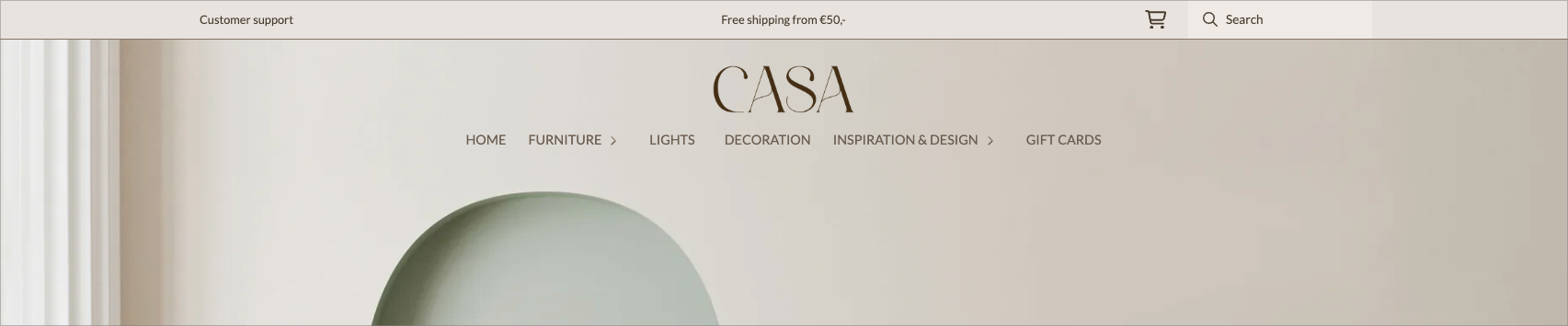
Transparent header allows the header to float over the content at the top of the front page, so that the image or banner behind shines through instead of the header having its own solid background. The effect is mostly used with a large front page banner or a video, where you want the logo and menu to be directly on top of the image.
The function is controlled in three places: a global on/off switch, color selection on the top menu section itself, and a separate logo on the logo block. You usually need to visit all three to get a good result.
How to turn it on
The main switch is in the global settings, not on the section.
- Open the design builder and go to the theme you are working with.
- Go to the global settings and open the group HeaderSet
- Transparent header to on.Save.
When the switch is on, two things happen — and only on the front page:
- The header is lifted out of the normal page flow and fixed at the top. The content below — typically the front page banner — then moves all the way to the top and positions itself behind the header, instead of starting below it. This is what makes the banner fill the entire top while the logo and menu are on top.
- The header switches to the colors you have set for transparent mode (see below) instead of its usual solid background.
All pages other than the front page retain a regular header with a solid background, which pushes the content down as normal.
Settings
The settings are divided into three levels. The switch determines whether the effect is on; the others determine how it looks.
Where | Setting | What it controls |
|---|---|---|
Global settings → Header | Transparent header | Turns the effect on or off for the entire theme. Off by default. |
Top menu section → «Transparent header» group (advanced) | Text color | Color of text and icons while the header is transparent. White by default. |
Top menu section → «Transparent header» group (advanced) | Background color | Background behind the header in transparent state. Fully transparent by default. |
Logo block | Logo for transparent header | A separate logo that is only displayed when the header is transparent. |
Text and background color of the section
These two are located in advanced mode on the top menu section itself, in a separate group called «Transparent header». They are only used when the transparent header is active — the regular background and text color of the section still applies to all other pages.
- The text color is set to white by default, because a transparent header usually sits on top of a dark banner. If your banner is light, you must set a darker text color yourself, otherwise the text will be invisible.
- The background color is fully transparent by default. If you want a subtle tone behind the header — for example, a slight darkening to make the text easier to read — you can set a semi-transparent color here instead of full transparency.
Separate logo for transparent header
A regular logo designed for a white background often disappears against a dark banner. Therefore, the logo block has a separate field for an alternative logo that is only used when the header is transparent — typically a light version of the logo.
Upload the alternative logo in the field Logo for transparent header on the logo block. If you don't set a separate logo here, the regular logo will also be used in transparent mode.
How it behaves
Some things happen automatically when transparent header is enabled, and are good to know before you start fine-tuning.
- Homepage only. The effect applies exclusively to the homepage. All other pages — category, product, cart, etc. — display the header with a regular background.
- The header overlays the content. Instead of pushing the banner down, the header floats over the top content on the page. This is why you see the banner image behind the logo and menu.
- Icon and menu colors are overridden. While the header is transparent, icons (shopping cart, search, account, etc.) and menu links follow the text color you have set for the transparent header. The individual color choices on the icon and menu blocks are ignored in this state. If you want to change the color, change the text color of the section — not the color of the individual block.
- Not visible in edit view. Inside the design builder, the transparent effect is turned off, so you can edit the header in the usual way. You must view the published homepage (or homepage preview) to see how it actually appears.
Pitfalls
- You see nothing in the editor. The most common confusion: you turn on the effect, but the header looks completely normal in the design builder. This is intentional — check the front page of the online store instead.
- White text on a light banner. The text color is white by default. If you have a light banner at the top, the logo, menu, and icons will become invisible. Set a darker text color, or use a darker banner.
- The banner must be able to withstand something on top of it. Since the header floats on top of the uppermost content, it can cover text or buttons at the top of the banner. Give the banner enough height or space at the top so that important content does not end up behind the header.
- The logo disappears against the banner. A dark logo on a dark banner will disappear. Use the custom logo field for transparent header and upload a light variant.
- You are looking for the color options in the wrong place. Text and background color for transparent header are located in advanced mode on the top menu section, not in the global settings. The switch is global; the colors are on the section.
- Expecting the effect on other pages. Transparent header is only available on the front page. It is not an error that category and product pages have a solid header.
Tips
- Always test on a real front page with the banner in place — preferably on both mobile and desktop, as the banner and logo may behave differently.
- A lightly semi-transparent background color (instead of fully transparent) is a good trick when the banner is busy and the text otherwise gets lost.
- Transparent header and floating top menu are two different things. Transparent header is at the top of the front page and floats over the banner; the floating top menu is the one that slides in from the top when the customer scrolls down. They can be used together.