
Section: General product info
The section "General product info" is only available on product pages and contains product description, manufacturer info, quantity discount, and more. Here you can add and configure the blocks that display information about the product.
Available blocks
The blocks below can be added to the section and allow you to display product info in addition to extra content such as products, text, and discount.
Tabs block
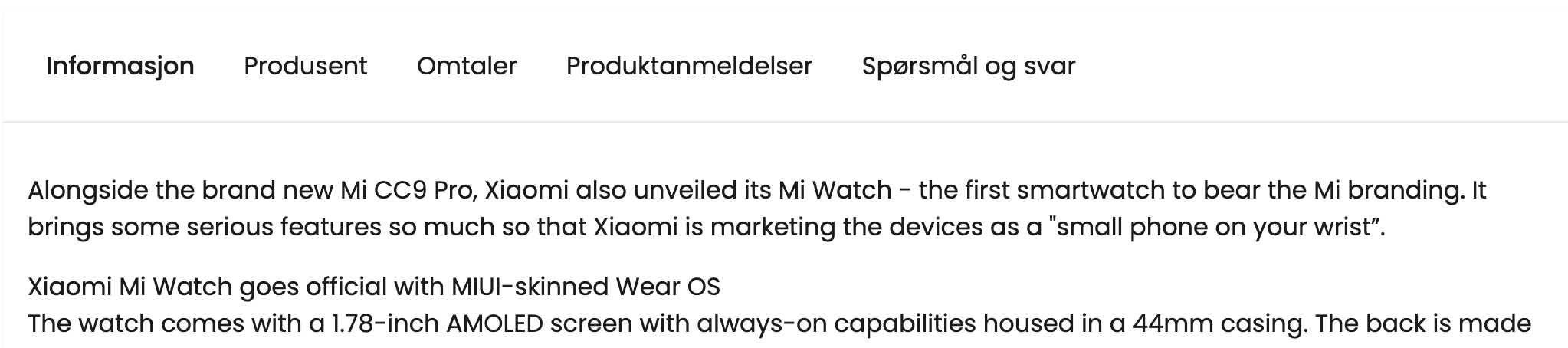
Tabs are the primary block for product description and other structured product info. You can add up to two tabs blocks on the same product page — useful if you, for example, want a compact block at the top and a full review block further down. Each block is independent with its own settings.
Show Image
Settings
- Convert tabs to accordion: Displays each tab as an accordion/collapsible section one below the other instead of a horizontal tab list.
- Close tab on first load: All tabs are closed when the product page loads.
- Default open tab: Select which tab is active when the customer lands on the page. Only displayed when "Close tab on first load" is deactivated.
- Show Lipscore widget: Displays a separate tab with product reviews from Lipscore, if this is enabled in the store.
- Show Lipscore Questions and Answers: Displays a separate tab for Lipscore's Q&A function, if this is enabled.
The block also displays any custom tabs, info about quantity discount and info about the product's manufacturer — provided these are enabled.
In advanced mode, the tabs block supports width settings per device (desktop, tablet, and mobile), in the same way as other blocks.
Default open tab
The "Default open tab" setting allows you to control which tab the customer sees first. Available options:
Option | Tab that opens |
|---|---|
Description | Product description |
Manufacturer | Manufacturer info |
Data sheet | Product features/data sheet |
Quantity discount | Volume discount table |
Yotpo | Yotpo reviews |
Trustpilot | Trustpilot reviews |
Lipscore | Lipscore reviews |
Lipscore Questions and Answers | Lipscore Q&A |
Custom tab 1–5 | Product's custom tabs, in order |
If the selected tab is not available on the product (e.g., because Lipscore is disabled in the store), the first available tab will automatically open. The page will never be displayed with an empty or empty-marked tab as a result.
Manufacturer tab
By default, a "Manufacturer" tab is displayed with the manufacturer's name, info, logo, and any link to the manufacturer. If you want to hide it:
- Go to Main menu → Configuration → General
- Go to Appearance, or search for Manufacturer
- Turn off the option Show manufacturer information
- The manufacturer tab is now hidden
Display of quantity discount block
A separate block to display a table with quantity discount. Note that this is in addition to the quantity discount tab if it is activated — so you can have both on the page simultaneously.
To check if the quantity discount tab is active:
- Go to Extensions → Your extensions in the control panel
- Search for Discount Center
- Open extension settings
- Check the setting Show quantity discount infoActive:
- shows quantity discount info as a tab on the product pageDisabled:
- does not show quantity discount info as a tab
Other blocks
The section also supports these blocks:
- Heading: Add an optional heading, e.g., above a product block
- Paragraph: Free text paragraph with custom text
- Products: Display a row of product selections — new, discounted, featured, or related products
- Crall: Show Crall product recommendations
Multi-column layout (advanced mode)
The section supports a multi-column layout that allows blocks to be placed side-by-side instead of stacked one below the other.
Enable Use multi-column in the section's advanced settings. You can then set the number of columns separately for desktop, tablet, and mobile.
The setting Distance between blocks (default: 12px) controls the space between blocks in the section. The value applies both horizontally and vertically. If you want different spacing for different blocks, use the block's own margin settings instead.
The "General product info" section allows you to add tabs with product description, quantity discount display, extra products, etc.
Available blocks
The blocks below can be added to the "General product info" section and allow you to display product info in addition to extra info such as products, text, and discount.
Tabs Block
Tabs are the main section for the product description. Add tabs and enable long product description to display the entire product description.
- Convert tabs to accordion: Each tab is displayed as an accordion/collapsible section one below the other, instead of a horizontal list of tabs.
- Close tab on first load: All tabs are closed by default when the product page is loaded.
- Show Lipscore widget: If the customer uses Lipscore for product reviews, a separate tab with available reviews will be displayed.
- Show Lipscore Questions and Answers: If the customer uses Lipscore's "Questions and Answers" feature, a separate tab will be displayed.
In addition to the options above, the "Tab" block will also display any custom tabs, quantity discount info, and product manufacturer info.
Manufacturer tab
Unless otherwise selected, a tab will be displayed by default, "Manufacturer", which contains the name, info, logo, and any link to the manufacturer.
If you do not wish to display a tab with manufacturer info, this must be deactivated in the store's configuration:
- Go to Main MenuConfigurationGeneralGo to Appearance, or search for ManufacturerTurn offthe option
- Show manufacturer informationThe manufacturer tab is now hidden
Display of quantity discount Block
A separate block to display a table with quantity discount.
Note that this will be in addition to a separate tab for quantity discount if this setting is active.
To check if the display of quantity discount (as a tab) is active, follow the steps below:
- Go to Extensions→ Your extensions in the control panelSearch for
- Discount CenterOpen settings for the extension
- Check if the setting
- Show quantity discount info is enabled or disabled:Active
- : shows information about quantity discount on the product pageDisabled
- : does not showinformation about quantity discount on the product page
Other blocks
Section has, in addition to the blocks above, also support for the following blocks:
- Heading: Add your own optional heading. This is intended as a heading above other blocks, such as "Products"
- Paragraph: Text paragraph with custom text.
- Products: Show a row with product selection
- New products
- Discounted products
- Featured products
- Related products
- Crall: Show supported Crall product recommendation