Edit index page banner
With simple steps, you can add, change, remove or update banners on the front page of your online store. You choose whether you want a single banner or if you want a carousel with multiple banners that rotate. Follow the guide to see how banners are added and/or updated.
There are several ways to add banners, depending on the type of banner you want.
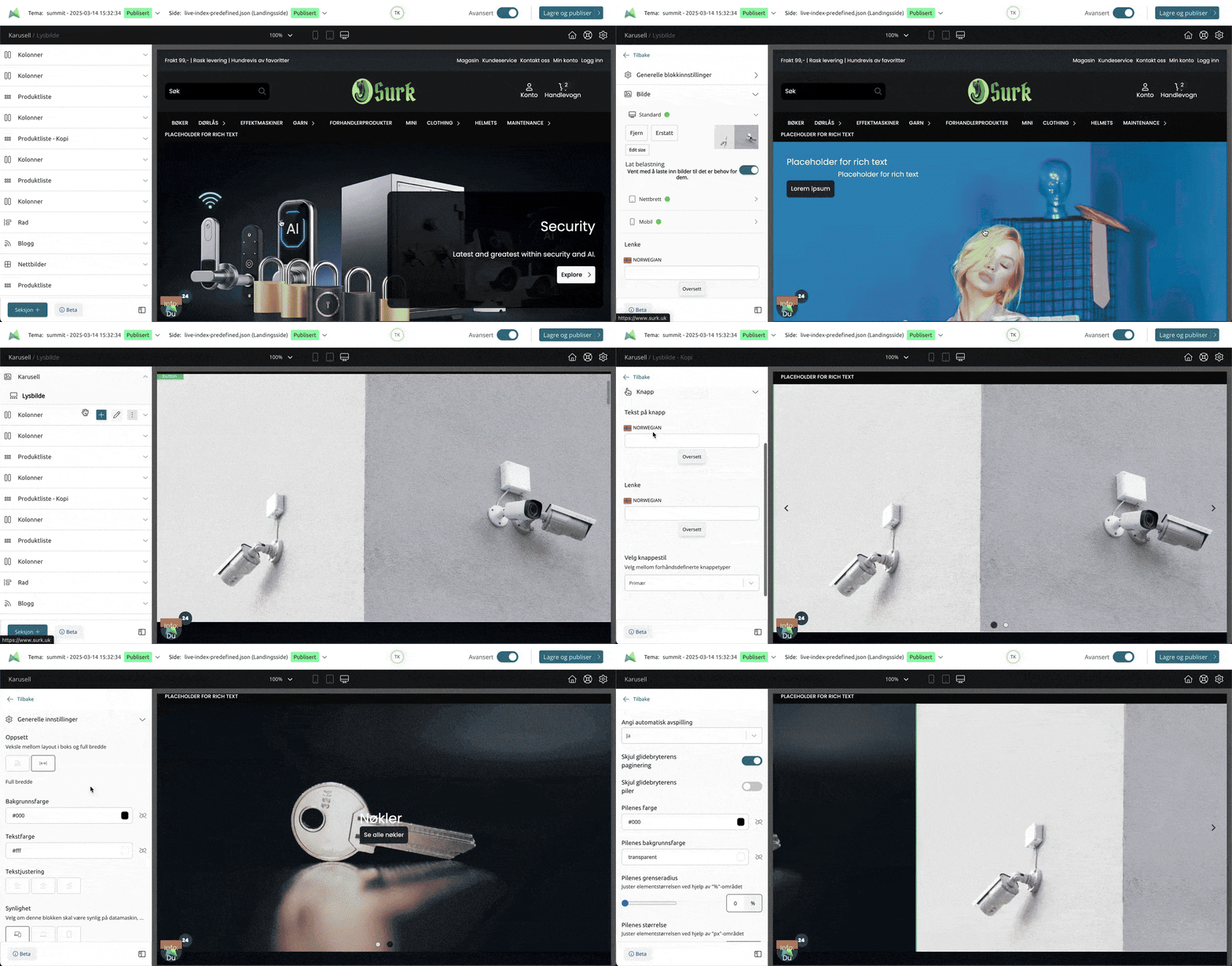
Carousel
A carousel banner supports one or more images that rotate at the desired interval.
- Add the Carousel section
Change position by dragging the section up/down in the sidebar - Once the section is added, click the plus button and add the Slide block
- Click the pencil to edit the block
- Scroll down to the Image setting
- Select Remove or Replace
- Upload the desired banner
Once you have uploaded the desired banner, it is important that you click Edit size and fill in the size of the banner. This ensures better SEO.
Settings
Under Image settings, you can choose to upload different banners for different devices. This means you can have a separate banner customized for mobile. Read more about image settings here.
- Link: Add the link that clicking the banner should lead to
- Alternative text: Recommended to add for better SEO. Alternative text, also called alt-text, is a text description of an image used on websites and in documents to make the content accessible to everyone, especially those with impaired vision or other disabilities. When a screen reader encounters an image, it will read the alternative text instead of displaying the image.
- Heading, paragraph and button: These can be used if you want to have various text and a button over the banner. If you do not want this, simply leave the fields empty.
Adding multiple images to the same carousel
If you want to have multiple images in the same carousel, simply follow the steps above. That is, add more slides to the same section.
Settings for automatic playback, time between each image, as well as the display of arrows, etc., can be found under the general settings for the Carousel section.
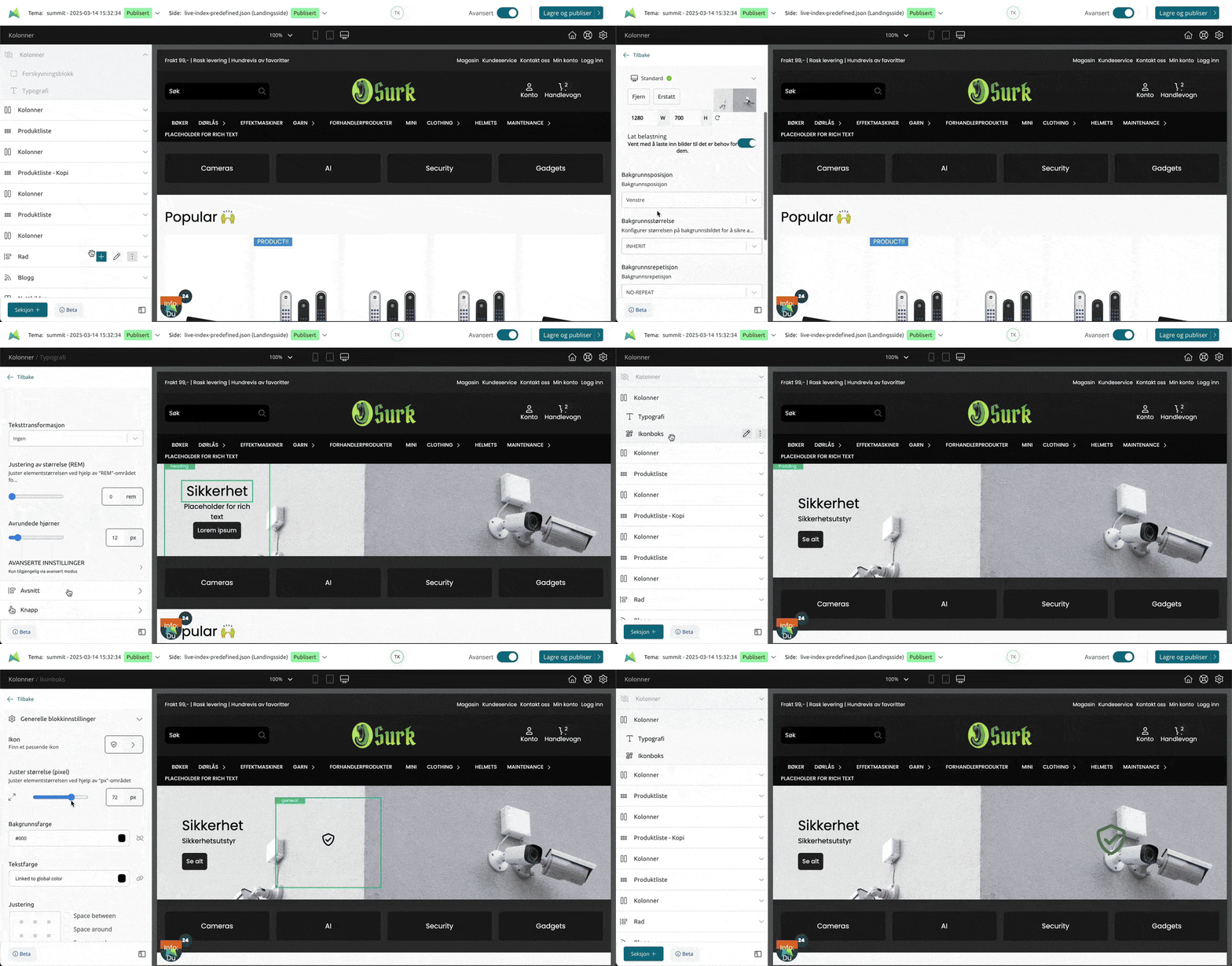
Banner using column
Another option for a banner is to use the "Column" section.
The image you want to use as a banner must then be set as the background image of the column. With this solution, you can only have one banner image, and not multiple ones like in the carousel section.
The advantage of using a column is that you can have several types of sections above the banner. Such as text, images, customer references, etc.
- Add the Column section
Change position by dragging the section up/down in the sidebar - Once the section is added, click the pencil button to open the section's settings
- Then open Background settings
- Then add the image you want to use as the background
After the image is added, you can set the size, position, and repetition of the image
After the image is added as a background, you can add blocks over the image.
- Click the plus button on the section
- Add the block(s) you want to display over the image
- Adjust the content and settings of the blocks as you wish