
Overview and customization
The POS dashboard gives you a comprehensive overview of sales in the POS system: how much you have sold today, how it develops over time, who is selling, and which reports you can proceed to. This article explains how to find the dashboard, what controls the numbers, and how to customize it.
You can find the dashboard in the control panel under POS → Dashboard
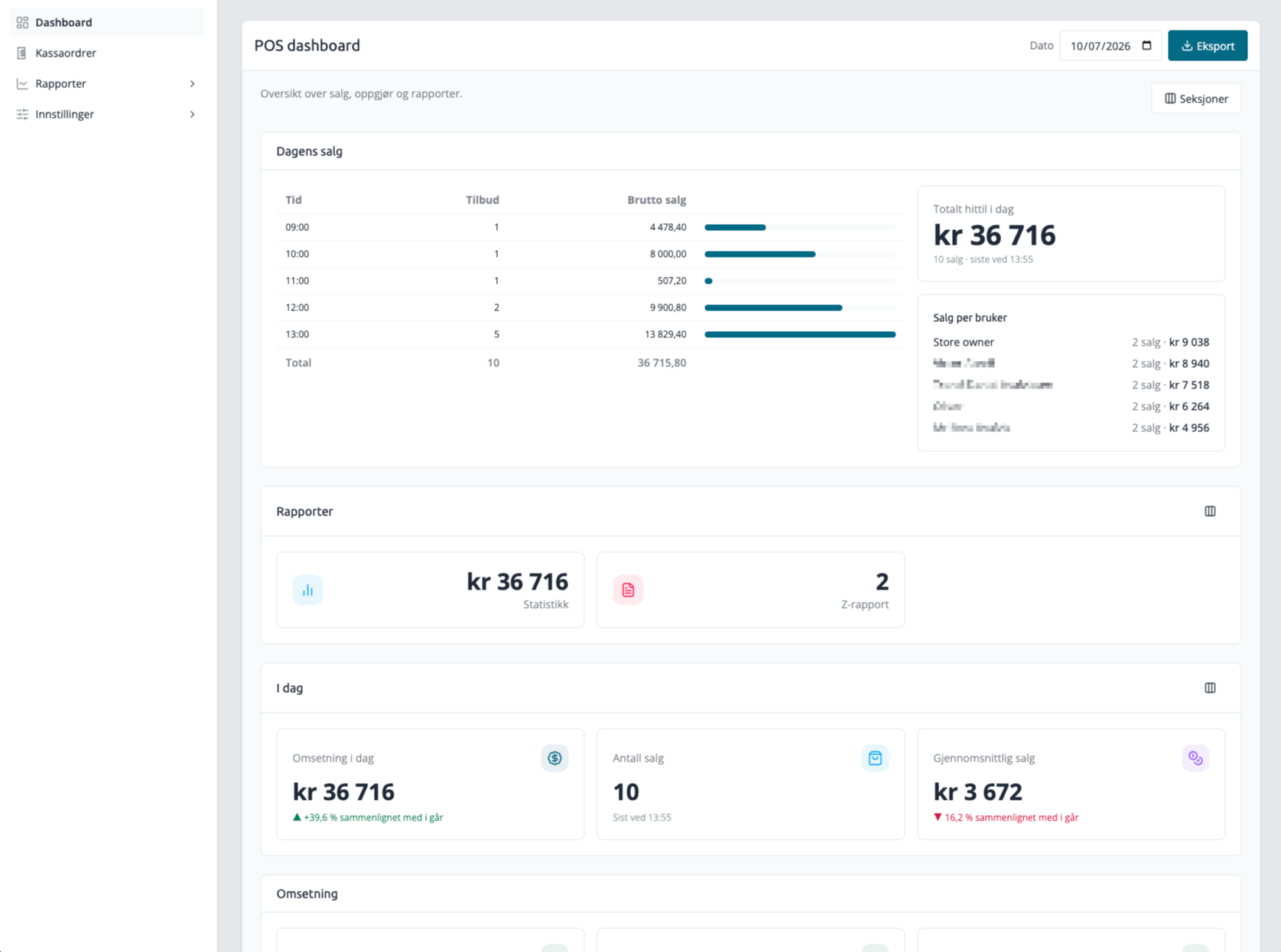
Top of the page
At the top, you will find two things that apply to the entire dashboard:
- Date – a date picker that controls which day the key figures and day-based sections show. The default is today's date. If you change the date, "Today's sales", the seller overview, and the sales graph will update to show the selected day.
- Export – button to download data from the dashboard. This feature is being rolled out, so it is not yet active in all stores.
One thing is not controlled by the date picker: the section Periodic sales, has its own period picker, allowing you to view a longer period without changing the rest of the dashboard.
The dashboard is built up of sections
The dashboard consists of several sections that you can turn on and off and move around. This way, you decide what should be displayed at the top and what you don't need.
The sections are:
Section | What it shows |
|---|---|
Today's sales | Sales hour by hour throughout the day, with running daily total and sales per seller |
Periodic sales | Sales per day for a period you choose, with totals for the period |
Key figures | Small cards with today's revenue, number of sales, and average sales |
Reports | Shortcuts to reports such as statistics, Z-report, accounting, and debt |
Sales graph | Graph comparing this week with previous periods |
Revenue | Revenue card for the POS system |
The three sections Today's salesPeriodic salesKey figures and Reports are described in a separate article: POS dashboard: Sections and key figures
Show, hide, and change order
- Click Sections in the top right of the dashboard.
- In the list that opens, check the sections you want to see, and uncheck those you want to hide.
- Drag the handle next to a section to move it up or down.
- Click Apply to save the layout, or Reset to revert to the default layout with all sections visible.
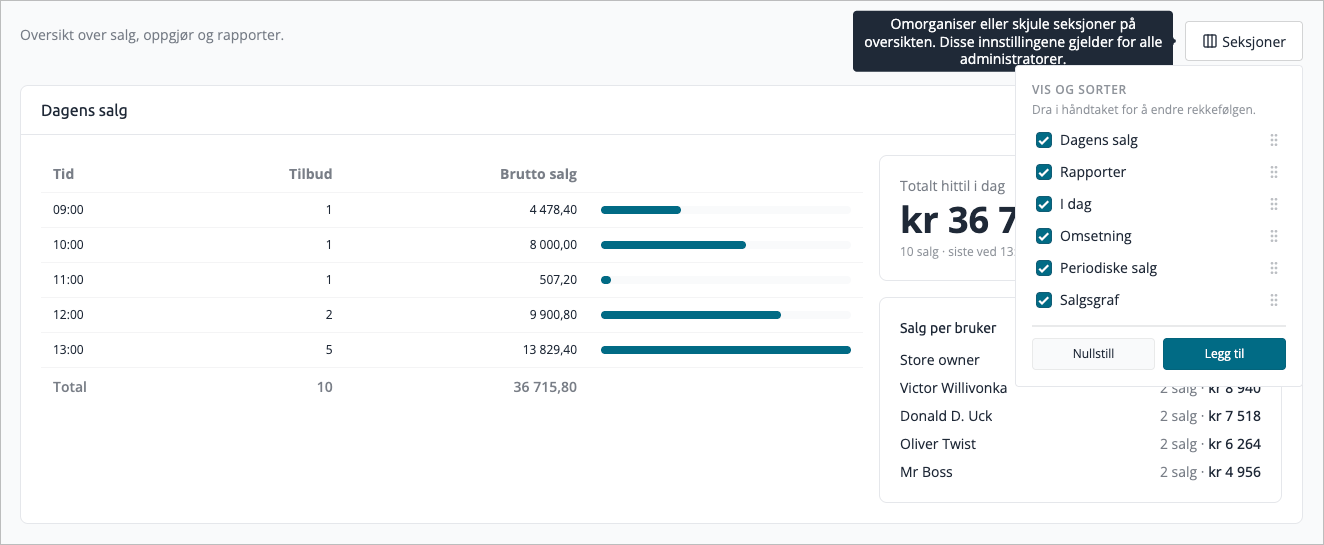
The layout applies to the entire store, not just your own user. If you change the order or hide a section, all administrators in the store will see the same. Keep this in mind before hiding something a colleague relies on.
Customize the content of a section
Some sections also have their own Customize button. This applies to Key figures and Reports, where you can show, hide, and sort individual cards in the same way you do with the sections. The other sections are toggled on and off as a whole.
Alert for open sessions
If the store has POS sessions that were started on a previous day and are still open, a red alert will appear at the top of the dashboard. A session remains open until it is settled, and a session that was left open from a previous day should be closed so that sales are settled and reported correctly.
In the alert, you will find:
- Contact support – closing a forgotten session is done with help from support, so the button opens the support chat.
- View sessions – link to the overview of open sessions.
- Read more about sessions – link to the article explaining what sessions are.
The alert disappears when there are no old, open sessions left. Sessions started today do not count. You can read more in the article Sessions in POS — what they are and why they must be closed on the same day

Tips
- The dashboard updates itself regularly. If a new sale comes in at the checkout, it appears in the figures without you needing to reload the page.
- Do you just want to see today's figures quickly? Leave the date picker on today's date, and "Today's sales" and the key figures will show the current status.
- If you need to look further back than one day, use Periodic sales instead of scrolling through the date picker day by day.