
Campaign Center v3 — Product tag sync
Product tag sync lets you automatically set tag values on your campaign products when a campaign starts, and optionally restore their original values when it ends. The most common use is adding a ribbon (e.g. "SALE!" or "Black Friday") to every product in the campaign automatically — no manual product editing needed.
Requirements
Two things need to be in place before you can use this feature:
- Plus plan — Product tag sync is not available on the Smart plan. If your account is on Smart, the tag sync card shows an upgrade prompt.
- Product Tags module installed — The feature depends on the Product Tags module. If you're on Plus but haven't installed the module, clicking the sync button takes you to the extension page where you can install it.
The tag sync card
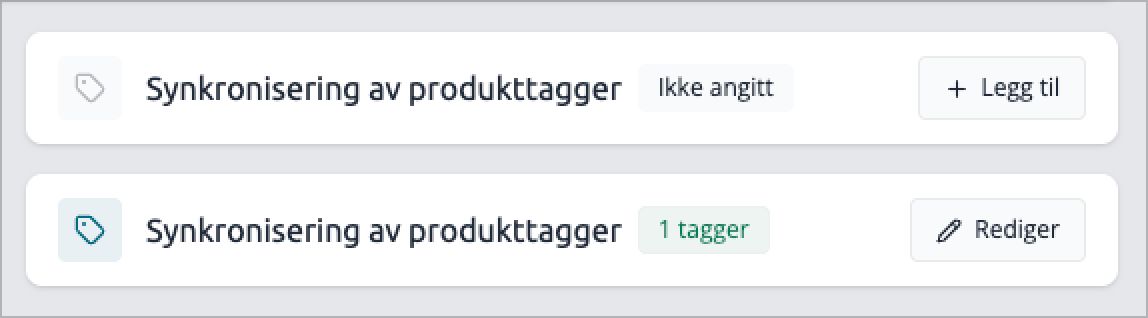
The Product tag sync card sits on the campaign detail page, next to the category sync card. It shows the current state at a glance:
Card state | What it means |
|---|---|
Grey icon, "Not set" | No rules configured yet |
Blue icon, "N tags" (green badge) | Rules are active |
Cr'own icon, amber badge | Plus plan required |
Click Add sync (or Edit if rules already exist) to open the settings modal.
Setting up tag rules
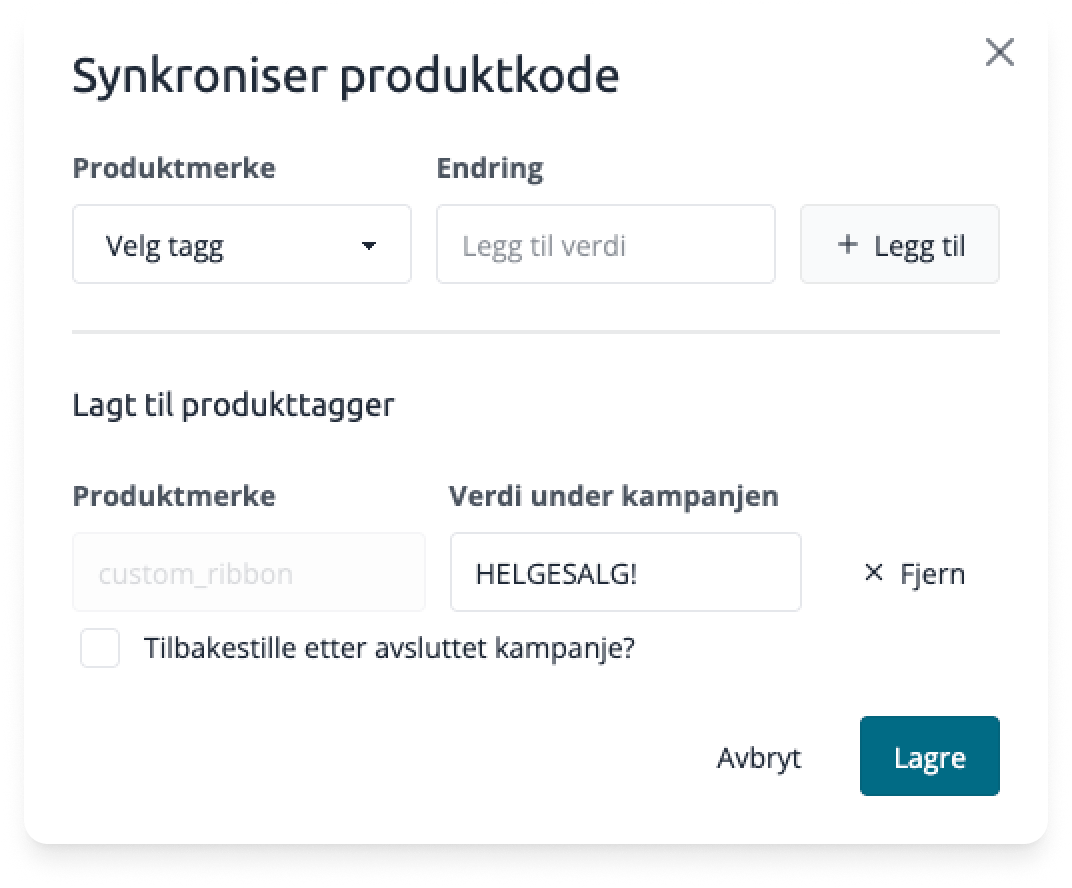
Each rule maps a product tag to a value that gets applied to every product in the campaign when it activates.
- Select a Product tag from the dropdown. This is the tag key (e.g.
ribbon,badge,label). - Enter a Value — the text that will be written to that tag (e.g.
SALE!,Black Friday,50% off). - Click Add.
- Repeat for any additional tags.
- Click Save.
You can add multiple rules to a single campaign, but each tag can only appear once. Adding the same tag twice shows an error.
Reset after campaign ends
Each rule has a Reset after ended campaign? checkbox. This controls what happens to the tag when the campaign deactivates:
Checkbox | On campaign end |
|---|---|
Unchecked (default) | The tag value stays as-is permanently. Useful for tags you want to keep after the campaign. |
Checked | The tag is restored to its original value. If the tag didn't exist on the product before the campaign, it's removed entirely. |
When you check this option, the system takes a snapshot of the current tag value the moment the campaign activates. That snapshot is what gets restored on deactivation — so it's always the pre-campaign value, even if you edit the tag manually while the campaign is running.
What happens when a campaign activates
For every product in the campaign, the system writes the configured tag values to the products_tags table. If a rule has Reset after campaign ends checked, the product's existing tag value (or an empty marker if the tag didn't exist) is saved as a snapshot first.
This all happens as part of the normal campaign activation — no extra steps needed.
What happens when a campaign deactivates
For each rule with Reset after campaign ends checked, the system looks up the snapshot taken at activation and restores it:
- If the product had a tag value before the campaign, that value is written back.
- If the product had no tag at all before the campaign, the tag is deleted.
- If no snapshot is found (e.g. the product was added after activation), the tag is left unchanged.
Rules without Reset after campaign ends are not touched on deactivation — the campaign value persists.
Editing rules on a live campaign
You can update tag rules while a campaign is already active. On save:
- New or changed rules are applied to all campaign products immediately.
- If you remove a rule that had Reset after campaign ends checked, the original tag values are restored right away for all products — the same as if the campaign had ended.
Tips
- The
ribbontag is the most common use case — it controls the promotional ribbon badge that appears on product cards in the storefront. Set it during the campaign, reset it when done. - You can combine tag sync with category sync. Both operate independently on the same campaign.
- Tag sync only fires on active campaigns. Rules saved on a Draft or Scheduled campaign take effect the moment the campaign ac