
Email Templates: Attaching a File
You can attach a PDF file to an order email template, and the file will be included every time the template is sent. Useful if you want to send, for example, a return form, warranty terms, or assembly instructions along with the order confirmation.
What you can attach
- File type: PDF
- Max size: 1 MB
- One file per template.
Attachments can only be added to order-related email templates — order confirmation, order update, and business customer confirmation (B2B). The option will not be displayed on other templates.
How to attach a file
You can find the attachment field in two places, and both do the same:
- In the email builder, under General in the settings panel.
- On the template card in the email template list, when you expand the card.
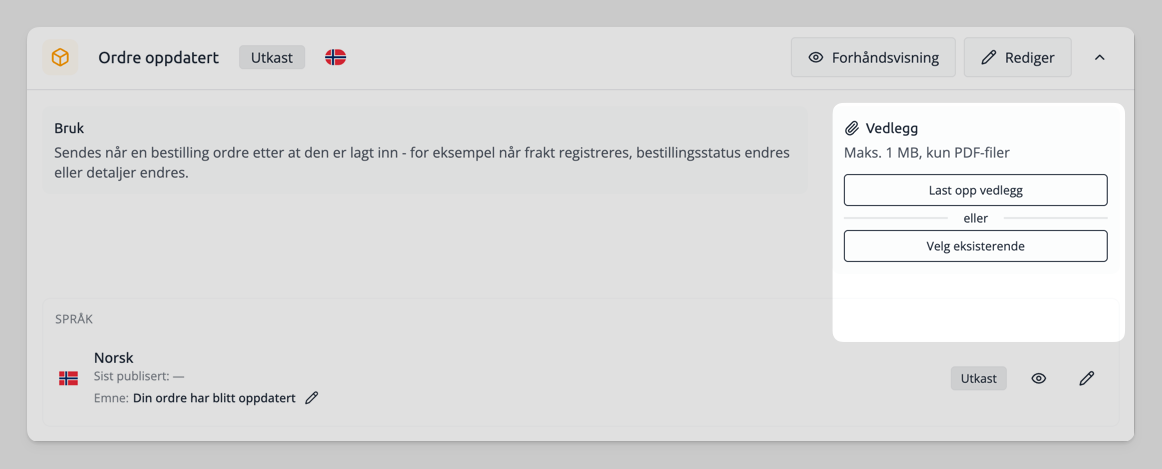
Upload a new file
- Click Upload attachment
- Select the PDF file from your computer.
The file is uploaded and immediately added to the template. You will see the file name and size in a field below, with a download button so you can open the file and verify that it is correct.
Select a file you have used before
If you have uploaded files before, you don't need to upload them again. Click Select existing to see the files you have uploaded before, and click Use next to the one you want. The same file can be used on multiple templates.
Remove an attachment
Click the remove button (✕) next to the file to detach the attachment from the template. The file will then no longer be included in emails from this template.
The file itself remains — it is still available under Select existing, so you can use it again later or on another template. Removing the attachment from a template does not delete the file.
Which emails will include the attachment?
The attachment is included with the order confirmation the customer receives when an order is placed, and when you resend an order confirmation or update an order from the order card.
What happens if the subscription is downgraded?
The upload itself requires Plus. If you downgrade, you can no longer upload or change attachments. An attachment already on a template will continue to be sent until you manually remove it. If you want to stop it, remove the attachment from the template as described above.
Tips
- Download the file using the download button after attaching it, to ensure the correct version is in place.
- If the same document is to be included in multiple templates, upload it once and use Select existing for the others.
- Keep the file small. Large attachments make the email heavier to receive, and the limit is 1 MB anyway.