
Discount Center: Quantity Discounts
A quantity discount rewards customers who buy more. You set up levels — «buy 5 or more, save 10%», «buy 10 or more, save 15%» — and the store automatically applies the correct discount based on how many products are in the shopping cart. No code to enter.
How the levels work
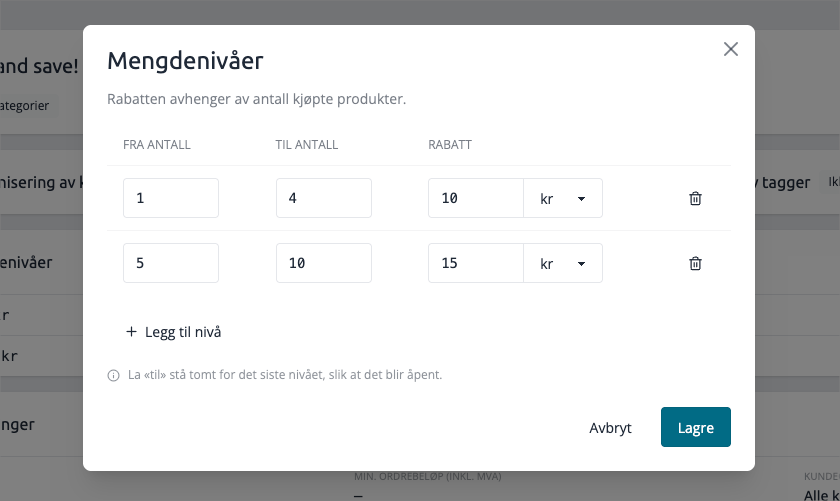
A quantity discount is built from one or more levels. Each level covers a quantity interval and the discount that applies in that interval.
From quantity | To quantity | Discount |
|---|---|---|
10% | 15% | (empty) |
20% | ||
In this example, buying 4 items gives a 10% discount, 7 items gives 15%, and 10 or more gives 20%.
Leave To quantity empty on the last level to make it open — then it covers that quantity and all above.
Edit levels
- On the discount's detail page, find the Quantity levels-card and click Edit levelsSet
- From quantityTo quantity and Discount for each level.Click Add level
- for a new row.Save.
Some rules the editor enforces:
- Each level needs a From quantity and a discount valueLevels must not overlap. Each quantity interval must be distinct.
- The discount value can be a percentage or a fixed amount per level.
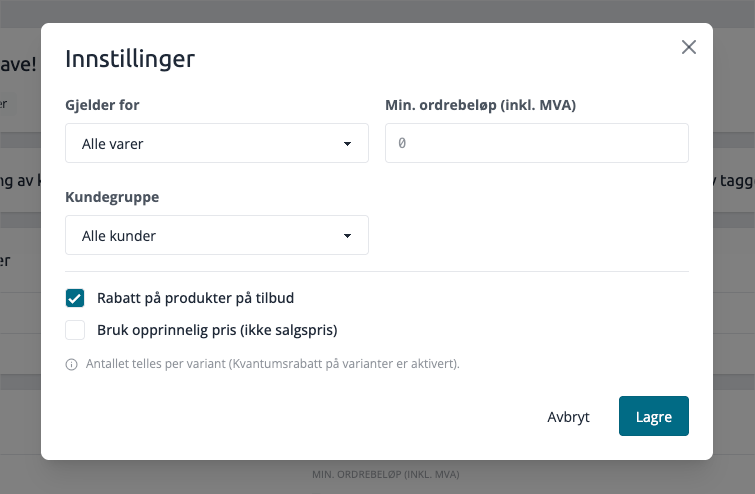
Settings
Settings-card on a quantity discount controls how the discount is calculated:
Setting | What it does |
|---|---|
Applies to | Whether the discount applies to all items in the cart, only the most expensive item, or only the cheapest item. |
Min. order amount | The cart total must reach this amount before the discount is applied at checkout. Leave empty if the discount should apply regardless of order size. |
Customer group | Limit the discount to one customer group. Default is all customers. You can also select Consumers (customers without a group) to give the discount only to regular customers who do not belong to a group — useful when you want to exclude B2B or loyalty club members. |
Discount on products on sale | Whether items already on sale also qualify for the quantity discount. |
Use original price (not sale price) | Calculate the discount from the recommended original price instead of the current sale price. |
It also shows if the quantity is counted per variant or per product total — this depends on a store setting. Per product total means that all variants of a product count towards the same level; per variant means that each size or color is counted separately.
How the quantity discount is displayed in the store
On the product page, the customer sees a table of the quantity levels, so they know what they save by buying more. The table shows the unit price for each level.
If the discount has a Min. order amount, a line appears above the table — for example, «The discount applies to orders from 500,-». This way, the customer understands that the discount requires a certain order size, while also seeing the levels that entice them to add more to the cart.
The limit itself is enforced at checkout: the discount is only applied when the order actually reaches the amount. If the cart is below the limit, the levels are still displayed on the product page, but the discount is not deducted until the total is high enough.
What it applies to
Like all discounts, a quantity discount can be targeted at all products, specific products, categories, or manufacturers. Most quantity discounts are targeted at specific products or a category. See the article Choosing which products a discount applies to
When you target specific products, the product list on the detail page shows a price column for each level — so you see exactly what a product costs at "From 3", "From 6" and so on.
Tips
- Use an open last level (empty "To") so there is no upper limit a large order can exceed.
- If you don't want a quantity discount to apply on top of sale prices, leave "Discount on products on offer" off.
- If you set a Min. order amount, the discount levels are still displayed on the product page — the customer sees the offer and what is required to trigger it.
- For "3 for 2" offers where the cheapest item is free, use Buy X for Y instead — it's designed for that.