
Embed YouTube videos
This article shows how to embed YouTube videos and YouTube Shorts on pages in your online store via the text editor in the control panel.
What does it mean to embed YouTube videos?
By embedding YouTube videos, you can display videos directly on your website without customers having to leave your online store. This is often used for product presentations, guides, inspiration, or marketing.
YouTube videos can be embedded on all pages that can be edited with the text editor in the control panel.
How to embed a regular YouTube video
- Go to YouTube and open the video you want to display
- Click Share → Embed
- Copy the embed code (iframe code)
- Go to Control Panel
- Open the page where you want to embed the video, for example:
- Products → Products → Select desired product → Edit
- Design → Main Menu/Content → Select page → Edit
- Products → Products → Select desired category → Edit → Category description
- In the text editor, click on Source
- Paste the iframe code directly into the source code
- Save the changes and check in the online store that the video is displayed correctly
Embedding YouTube Shorts
YouTube Shorts does not have its own Embed function, but can still be embedded manually using an iframe.
Here's how:
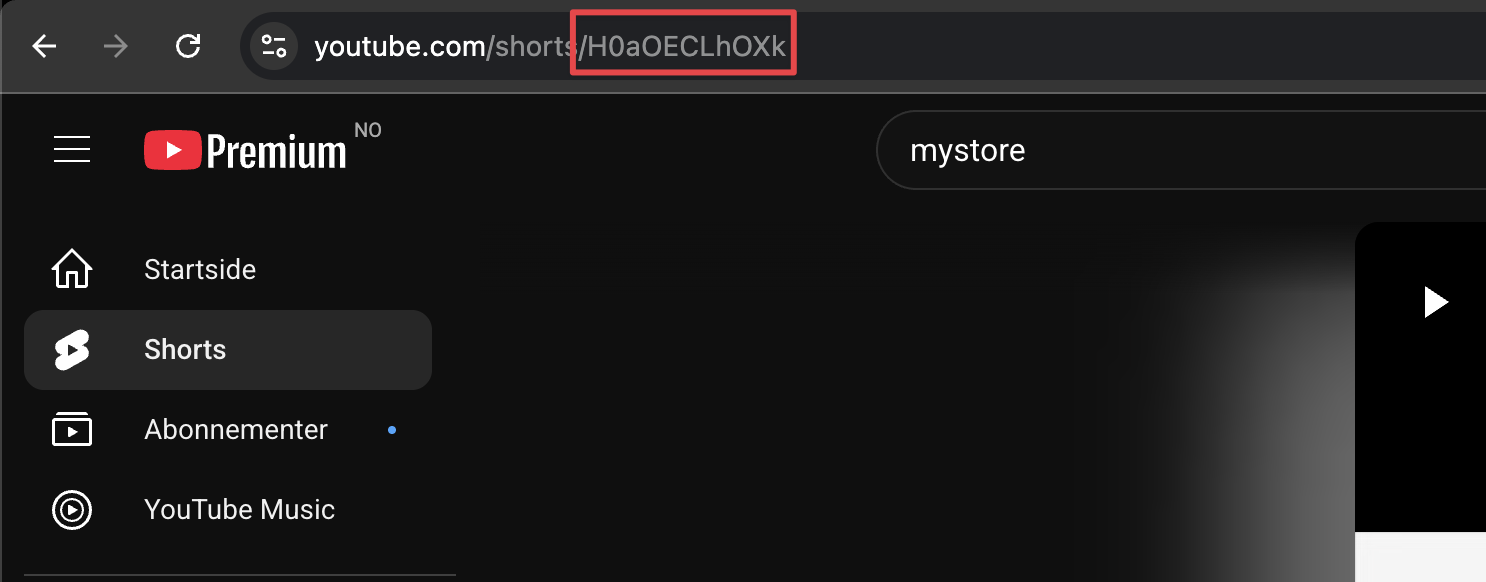
- Go to YouTube Shorts and open the video
- Copy video ID from the URL
- Go to Control Panel and open the page where you want to embed the Short video
- Click Edit → Source in the text editor
- Paste the code
- Replace <Shorts_video_code> with the video ID
- Adjust width and height as needed
- Save changes
Example of iframe code:
<iframe width="315" height="560"
    src="https://www.youtube.com/embed/<Shorts_video_code>"
    title="YouTube video player"
    frameborder="0"
    allow="accelerometer; autoplay; clipboard-write; encrypted-media; gyroscope; picture-in-picture; web-share"
    allowfullscreen></iframe>