
Customs clearance of Norwegian goods in transit (NVIT)
Customs clearance of Norwegian goods in transit (NVIT)
How to register HS codes and country of origin for your products, and how Mystore sends the customs declaration to the shipping provider.
Introduction
Do you use shipping providers that travel through our neighboring countries? From March 31, 2026, customs information will be mandatory on these routes – also for domestic shipments within Norway. This applies to most major shipping providers, including Posten and PostNord, who often transport goods via Sweden or Finland on their way to destinations in Norway.
The following information must be included on your shipments:
- Customs tariff code (HS code): the product code that identifies the item. Customs authorities require a minimum of the first six digits, and the field in Mystore accepts the full eight-digit code.
- Country of origin: the product's country of origin
- Weight: registered on the product
- Item value: already registered on the product
Mystore automatically sends this information for you if you use Profrakt or MyBring in order processing. If you use a different shipping solution, you must generate a proforma invoice and attach it to the outside of the package.
How to add the information
Weight and item value are already registered on your products. You only need to add the HS code and country of origin – this is most easily done via Bulk editor in the control panel.
Step 1 – Install the Extra Product Information extension
To access HS code and country of origin, you must install the "Extra Product Information" extension.
Navigate to Extensions > Your Extensions. After installation, you can add HS code and country of origin via the product page or via Bulk editor.
The extension has its own on/off switches for each field – country of origin, HS code, and material. All three are on by default. If a field is turned off, it disappears from the product page, and the value is not included in the customs declaration.
Step 2 – Add country of origin
The product's country of origin.
You can add in two ways:
On individual products
- Open the product you want to add information to
- Add Country of Origin under the field "Extra Product Information"
Via Bulk editor
- Navigate to
Products → Bulk editor - Select the products you want to update – either all, or use a filter to select a subset
- Select action
Country of origin - Select the item's country of origin and press
Start →to complete
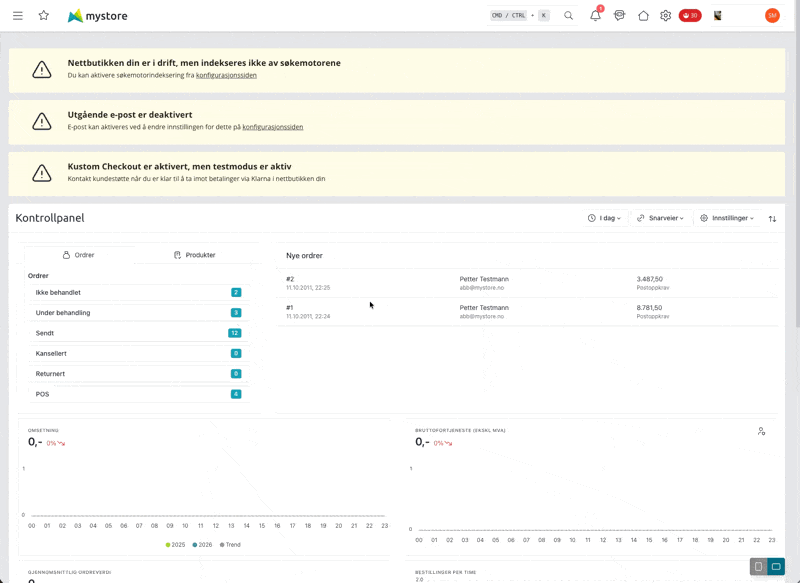
See example:
Step 3 – Add customs tariff code (HS code)
An HS code is an eight-digit code that identifies your product category (e.g., 95071000 for fishing equipment).
How to find the correct HS code: contact your supplier, or use the Norwegian Customs' search tool at tolltariffen.toll.no
HS code can be added in two ways:
On individual products
- Open the product you want to add information to
- Add HS code under the field "Extra product information"
Via bulk editor
- Navigate to
Products > Bulk editor - Filter to the products to be updated
- Select action
HS code - Paste the HS code and press
Start →
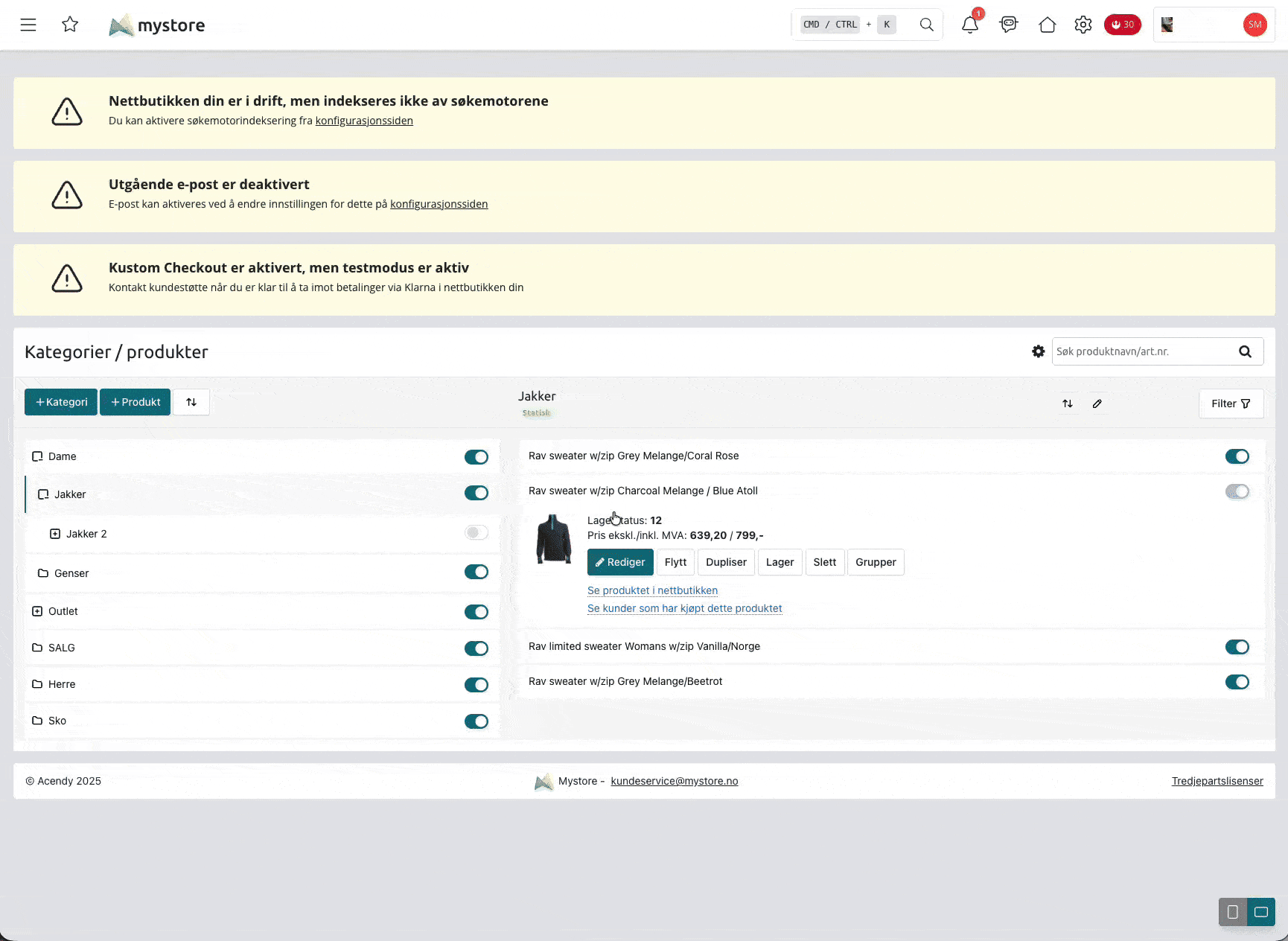
See how:
Step 4 – Fill in material (optional)
Material is in the same field as HS code and country of origin. If you fill it out, the material is placed before the product name in the item description sent to the shipping provider – "Cotton T-shirt" instead of just "T-shirt". This makes the item line easier for customs authorities to classify, but it is not required.
How customs information is forwarded
When products have an HS code and country of origin, Mystore builds a customs declaration per order and sends it along with the shipping order. Each item line on the order becomes an item line in the declaration with article number, product name, HS code, country of origin, quantity, item value, and weight. The item value is converted to the order's currency.
The declaration is only sent when you actually order the label from Mystore. If you create the shipment manually in the shipping provider's own system, you must enter the customs information there.
Profrakt
If you have Profrakt activated, you will get a new checkbox in order processing: Include NVIT customs declaration
The field appears when you select order status "Sent" or "Delivered" and choose a shipping product that supports NVIT with Bring or PostNord. If the product in your agreement does not support NVIT, the field will not be displayed at all.
NVIT is only sent on domestic shipments – both the sender's and recipient's addresses must be in Norway. If you send abroad, the field is hidden.
Enable by default: go to Extensions → Your Extensions, open the Profrakt extension and set NVIT default to to true. Then the checkbox is pre-checked on each order, and the customs information is also sent when you process orders without seeing the checkbox – i.e., when bulk printing labels, via API, and from the Order Assistant. If the setting is false, you must check it manually on each individual order.
The setting is only displayed if your store runs on Profrakt. If you use Logistra instead, NVIT is not available.
Screenshot needed: Order processing with the Profrakt panel open, where the checkbox "Include NVIT customs declaration" is visible under the shipping product selection.
MyBring
If you use MyBring, you will find the checkbox Include NVIT customs declaration directly above the button Print label on the order. Check the box before printing, and the customs declaration will be included with the booking.
Enable by default: go to Extensions → Your Extensions, open the MyBring extension and set NVIT default to to true
If you don't see the setting, press Update on the MyBring extension first. Stores that installed MyBring before NVIT support was available will only get the setting after such an update. The values you have already entered – username, API key, and printer setup – will be retained.
Screenshot needed: MyBring panel on an order with the checkbox "Include NVIT customs declaration" above the button "Print label".
Other shipping solutions
If you use neither Profrakt nor MyBring through order processing, you must generate a proforma invoice and attach it to the outside of the package.
When processing an order
Can't find the checkbox?
The field is not always visible. The reason depends on which solution you are using:
Solution | The field is not shown because |
|---|---|
Profrakt | You have not yet selected a shipping product – the field only appears when you select a product from the dropdown list |
Profrakt | The shipping product you selected does not support NVIT in your agreement |
Profrakt | The order is for abroad – NVIT only applies when both sender and recipient are in Norway |
Profrakt | The store runs on Logistra, not Profrakt |
MyBring | You have too few credits – in that case, the entire panel is replaced by a message to top up your account |
Warnings about missing information
When the checkbox is ticked, Mystore checks the order's item lines and displays a red warning directly below the field if something is missing:
Warning | Means |
|---|---|
Missing HS code | One or more products on the order have no HS code registered |
Missing country of origin | One or more products are missing country of origin |
The warning lists the products concerned, so you know exactly what needs to be corrected. It does not stop you – the label will be printed regardless, but the declaration will be sent with empty fields for those products. Fill in the information on the product and reprocess the order if you want a complete declaration.
The warning follows the checkbox. If you uncheck it, it will be hidden.
Bulk printing, Order Assistant, and API do not provide a warning
The warnings are only available on single orders. If you print labels for multiple orders simultaneously, use the Order Assistant, or go via API, there is neither a checkbox nor a warning – the customs information is sent silently, controlled by the setting NVIT standard on alone.
This means that products without an HS code or country of origin will be sent with empty fields without you being notified. If you do a lot of bulk printing, it's worth cleaning up the product data first – filter by missing HS code in Products → Bulk editor and fill out collectively.
If the label is not printed
If the shipping provider rejects the shipment, you will receive their error message in return:
- On single orders: the message is displayed as "Error message:" in the EDI panel on the order
- For bulk printing: the order remains with red text in the results list, with an info icon you can hover over to read the message
The messages come directly from Bring or PostNord and usually point to which item line or field was rejected. If it concerns customs information, correct the HS code or country of origin on the product and re-run the order.
Frequently Asked Questions (FAQ)
Questions and answers are taken from the following article created by NHO Logistikk og Transport:
What must the goods owners do?
The carriers depend on receiving information at the item line level from the goods owners when ordering the transport assignment.
Firstly, the goods owners must adapt their goods systems so that information about the item's 6-digit item number can be entered. Secondly, the goods owners must adapt the systems to transfer structured data to the carriers when ordering transport assignments.
Goods owners who deliver goods to Northern Norway should clarify change requirements with their carriers as soon as possible.
What is "good enough" while waiting for system support and new routines to be in place?
The Norwegian Customs Agency is well aware that no actors will be able to meet the new requirements for transports containing a large number of item lines. It is therefore stated that the business community must do its best and deliver "good enough". Many questions have arisen about what requirements the authorities will impose on information provision after March 31, 2026. It is therefore crucial for our industry to clarify what "good enough" entails. The Norwegian Customs Agency issued the following clarification on February 13:
""Good enough" is difficult to answer precisely, and we understand that this is challenging for the business community to handle. In this context, "good enough" means that you must do your best to classify and provide the correct item number for as much of the cargo as possible."
Item number 54.02.53 gives no indication of the type of goods being carried as cargo, and therefore has no value. The business community should seek to find solutions that ensure the goods are at least within the category to which they belong.
It will require the goods owner to set aside time to group different goods being sent, but it will hopefully reduce the scope of goods from many thousands of different item numbers to a few hundred.
If some actors have regular shipments with approximately the same content, it will be sufficient during a transition period to classify the scope of goods once and then reuse the information for the next shipment."
What are the consequences of not providing complete information after March 31?
The Norwegian Customs states that they will carry out spot checks, but that their primary focus will be on guidance – not sanctions. They also state that "the transport will not be stopped, but the authorized sender must try to correct the information following guidance from the Norwegian Customs".
In addition to this, NHO LT and several other actors have questioned whether Swedish and Finnish customs authorities will act in the same way. The Norwegian Customs responds to this:
"Norwegian customs authorities cannot determine what and how other customs authorities choose to control the movement of goods crossing their borders. However, we have a good dialogue with Swedish and Finnish customs authorities, and we will keep them updated on how Norwegian businesses are working to meet the March 31 deadline. We will present statistics and inform about how we are working with the business community to meet the deadline, and how we follow up on actors who do not provide correct item numbers in the period after March 31"