
Manufacturers — overview and setup
Manufacturers — overview and setup
Manufacturers are the brands or companies that make the products you sell. You manage them under Products → Manufacturers in the control panel. Manufacturers can have their own public pages in the online store, and they are linked to the suppliers you buy from.
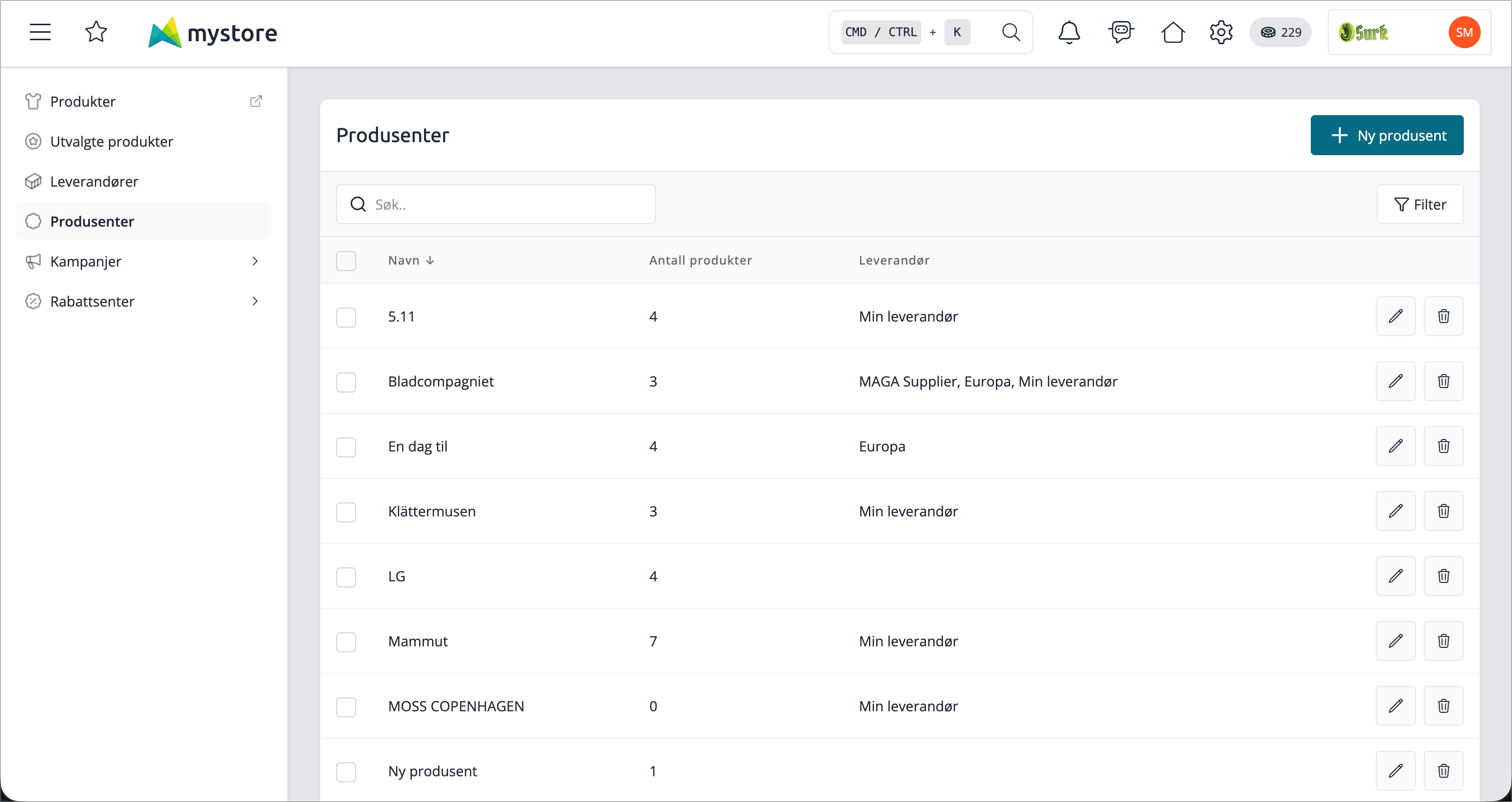
Manufacturer List
The overview shows all manufacturers with name, number of associated products, and linked supplier. You can search by name, filter by status or supplier, and delete multiple manufacturers at once.
Create or edit a manufacturer
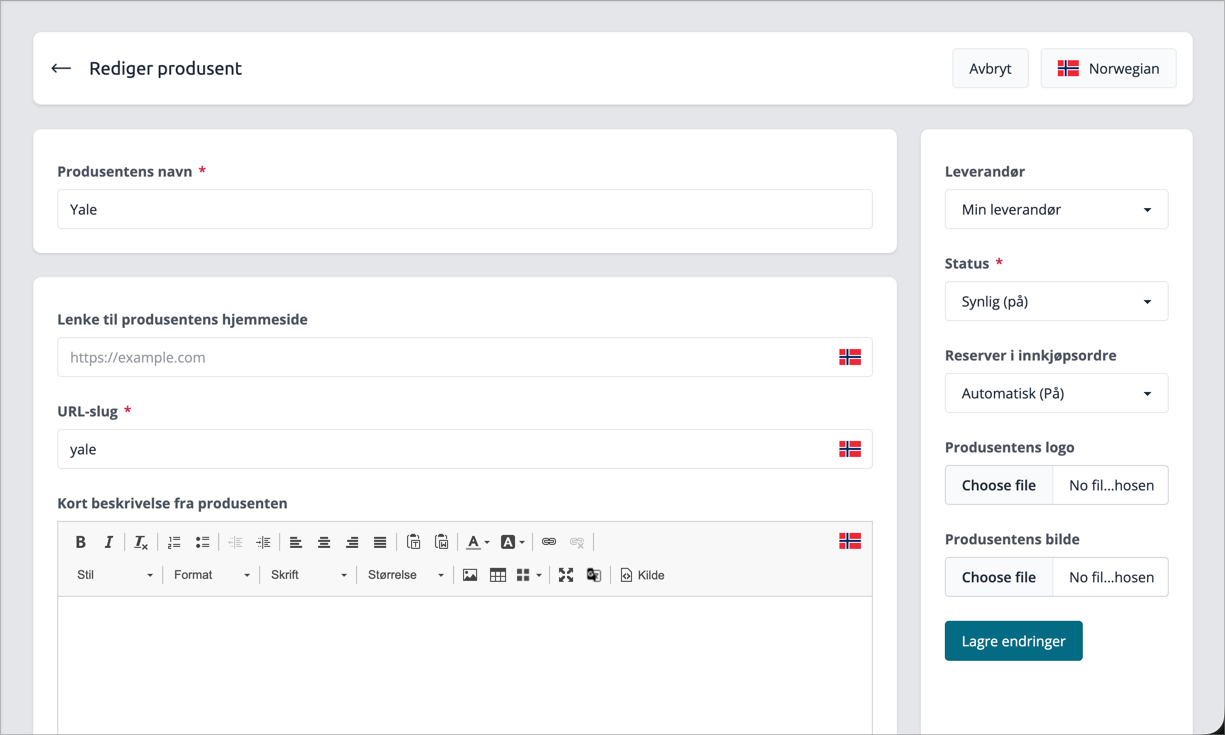
Click Create manufacturer to create, or the edit icon on an existing one.
Manufacturer's name
The name applies across all languages. Max 64 characters.
Status
Controls whether the manufacturer is visible in the online store:
Status | Meaning |
|---|---|
Visible (on) | The manufacturer is active and displayed in the online store |
Hidden (off) | The manufacturer is hidden from customers |
Deactivated | For administrative use only — not available in the online store |
Reserve in purchase order
Determines whether products from this manufacturer are automatically reserved in purchase orders.
- Automatic (on) — products are automatically reserved when added to a purchase order
- Manual (off) — you reserve manually
Supplier
Select which supplier you purchase products from this manufacturer from. This links the manufacturer to a supplier so that the purchase module can automatically suggest the correct supplier.
Selling the same brand via multiple suppliers? You can override the supplier selection per product on the product card.
Images
You can upload two images per manufacturer:
- Manufacturer's logo — typically used in product boxes and category pages
- Manufacturer's image — larger illustration image used on the manufacturer's own page in the online store
Max 2 MB per image.
Multilingual information
Manufacturers support multilingual content. Use the language selector at the top of the form to switch between available languages. Each language is saved separately.
These fields are language-specific:
Field | Description |
|---|---|
Link to manufacturer's homepage | URL to the manufacturer's website. Displayed on the manufacturer's page in the store. |
URL slug | The readable part of the URL for the manufacturer's page, e.g., |
Short description | Concise text about the manufacturer. Can be displayed in lists and product boxes depending on the design template. |
Full description | Longer text that is only displayed on the manufacturer's own page in the online store. |
Meta title | Displayed in the browser tab and search results. |
Meta description | Used by search engines below the link in search results. |
Manufacturer's page in the online store
Manufacturers with status Visible automatically get a public page in the online store. The page is displayed at the address based on the URL slug you define, and contains:
- Manufacturer's name and description
- The full description (only here, not in lists)
- Logo and image
- All products linked to the manufacturer
The design template controls exactly which elements are displayed and how the page looks. You can customize the layout in the Design Builder.
Link to products
You link a product to a manufacturer on the product card (Products → Products → select product → General Information). A product can only have one manufacturer.
The link is used for:
- To display the product on the manufacturer's page in the online store
- To filter products by manufacturer in the purchasing module
- Inventory value report and other reports with manufacturer filter
Delete a manufacturer
You can delete individual manufacturers using the trash can icon, or delete multiple using the checkboxes and Delete selected
If the manufacturer has associated products, a warning with the number of products will be displayed. You then choose one of two options:
- Delete linked products — the manufacturer and all associated products are permanently deleted
- If you leave the checkbox unchecked — the manufacturer is deleted, but the products are retained without manufacturer association
Images, descriptions, and all multilingual information are always deleted when the manufacturer is deleted.