
Favorites / Wishlist
This article explains how to use the "Favorites" extension to save products to a wishlist. You can use this feature both as a logged-in and non-logged-in user.
Extension settings
This extension has several settings that can be changed by the store. Find the extension in "Your extensions" and click "Settings".
- Favorites: Allow end customer to add favorites
- Allow sharing of lists: If the setting is enabled, the end customer can, from their pages, activate list sharing, which in turn makes it possible to generate a shareable URL.
- Allow the customer to change quantity: Allows the end customer to change the quantity of a product added to favorites
- Allow the user to create their own lists: The end customer can create several different favorite lists from "My pages".
Setup and use in design
Below you will find information on both the setup and use of favorites/wishlist in your design.
To add a product to favorites/wishlist, click the heart button, either on the product box or on the product page.
Wishlist storage
How the wishlist/favorites are stored depends on whether the end customer is logged in or not.
Logged in:
- Products are saved until you manually remove them.
- You can create multiple lists and share them.
Not logged in:
- Products are stored locally in your browser (local storage).
- The list is only available in the current browser.
- The list is deleted if browser data is cleared.
Product boxes
The favorites icon/button is automatically added to the product boxes when the extension is activated. No additional customization is necessary.
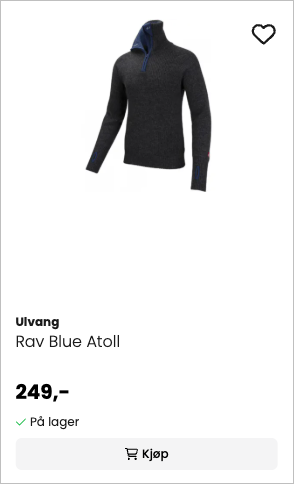
Product page
When using the wishlist/favorites extension, a button will be displayed on the product page to add/remove the product from the list.
Follow the steps below to customize the display on the product page:
- Open the product page template.
- Open the "Product Purchase" section.
- Open the settings for the "Buy Button" block.
Settings
- : Show favorites button: Enable this option to show a separate button for favorites next to the buy button.
- : Show favorites as a separate button: : This option separates the buy button and the favorites button, but they remain placed next to each other.
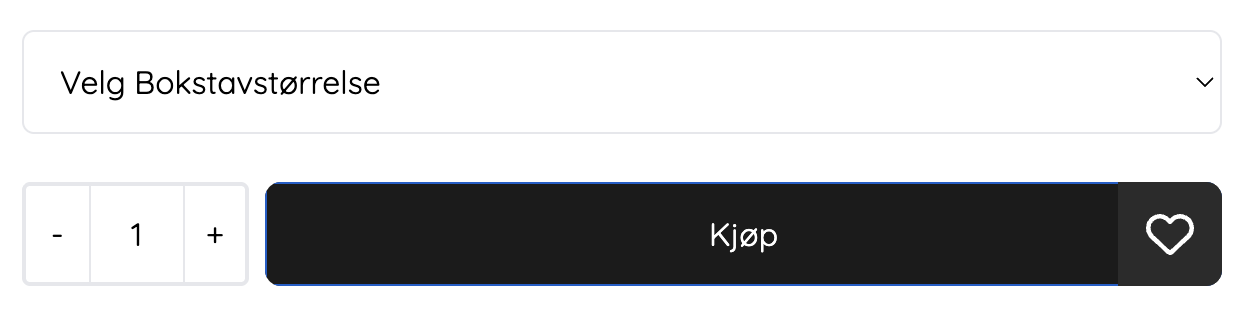
Bakgrunnsfarge
Hvis favoritter vises som egen knapp, bør fargen justeres manuelt ved å velge "CUSTOM" som bakgrunnsfarge.
Favorites button color
You can choose between LIGHTDARK and CUSTOM
- Light:: The button uses the same background color as the buy button, but with a white layer with approx. 20% transparency.
- Dark:: The button uses the same background color as the buy button, but with a black layer with approx. 10% transparency.
- Custom:: You can customize all colors, including background color, icon color, and colors on "hover".
Show wishlist in top menu
When using the extension, you can choose to show an icon (button) and quantity in the top menu of the online store.
Here's how to show wishlist/favorites in the top menu:
- Open the design builder
- Open the template for "Top menu"
- Find the section "Top menu construction" / "Header"
- Open the "Icons" block
- Find the setting "Wishlist icon"
- Make necessary adjustments
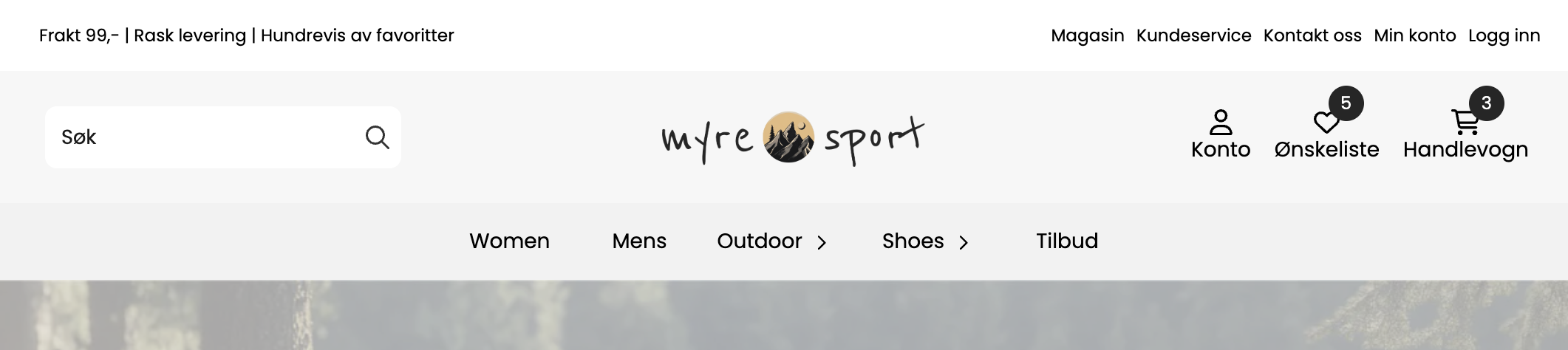
My account / customer account
When you log in, you can see all the products in your favorites list, add more lists and share the lists.
You can share a list by copying the public link.
Aktiv liste
Hvis du har flere lister, legges nye produkter til i den aktive listen.