
Dynamic Categories
What is a Dynamic Category?
Dynamic categories allow you to automatically organize products based on rules instead of manual handling.
A dynamic category uses rules to automatically include products that match specific criteria. In contrast to a static category:
- Static Category: Products are added manually.
- Dynamic Category: Products are added automatically based on rules.
You can set rules based on criteria such as stock status, product tags, prices, and more.
Examples of use:
- "New Arrivals" (products created in the last 30 days)
- "Sale Items"
- "Products from Brand X"
- "Campaign of the Month"
Before You Start
- A dynamic category must first be created as a regular (static) category.
- Rules are added afterwards.
- Existing products may be replaced (see the Important to Know section).
How to Make a Category Dynamic
- Create a category the usual way.
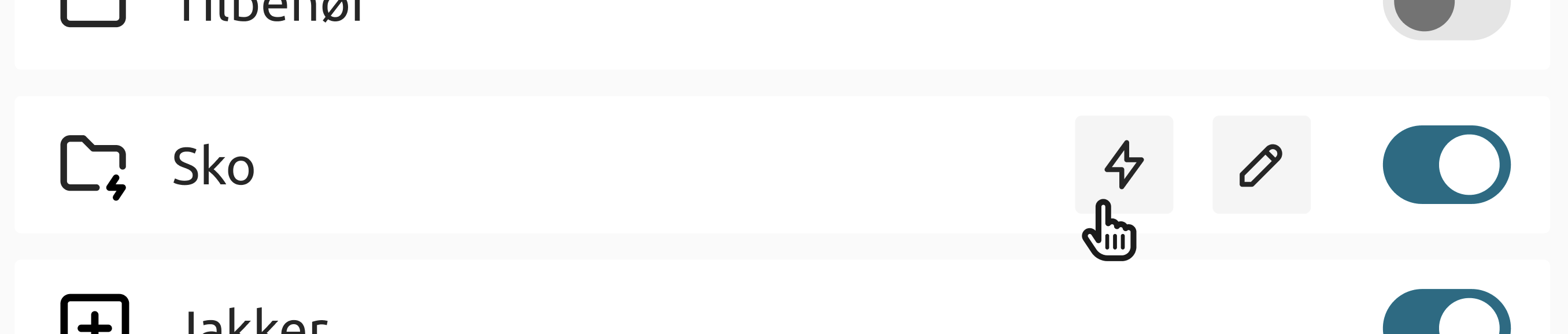
- Hover your mouse over the category in the side menu.
- Click the lightning bolt icon.
- You will be redirected to the rule setup page.
- Add one or more rules.
- Save.
Defining Rules
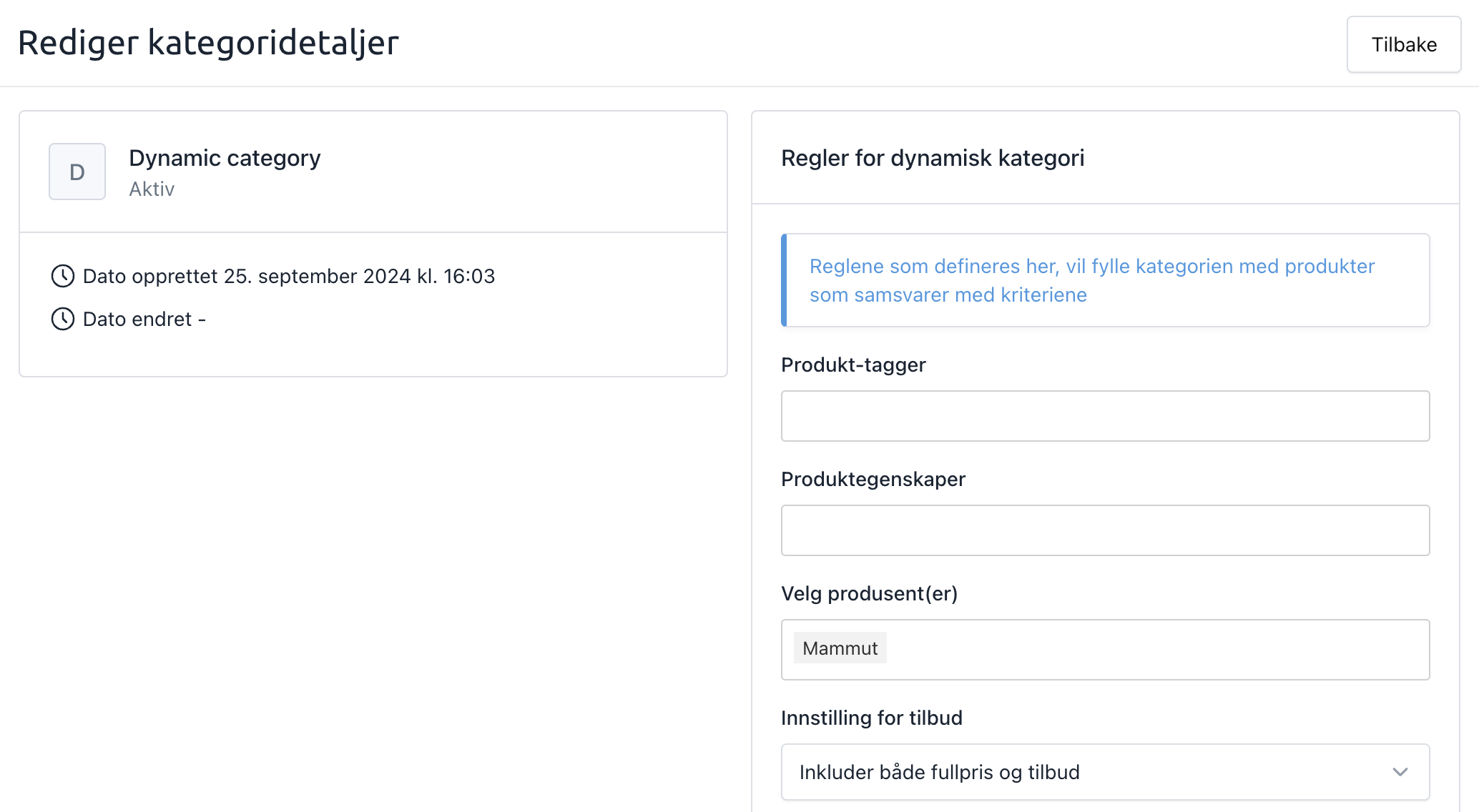
You can set up one or more rules. For a product to appear in the category, all rules must be met. This is because the rules use an AND-condition.
At any time, you can:
- Change the rules
- Remove the rules
Available Rule Types
You can filter products based on:
- Product Tags: Custom tags you have added (e.g., "Gift Card").
- Product Properties: Custom attributes (e.g., material, size, type).
- Manufacturer
- Sale Status: Show products on sale, full price, or both. This is great for combining with other filters.
- Retail Price: Products above or below a specific price.
- Gross Profit: Products with a specific margin. Useful when combined with sale prices.
- Days Since Product Was Created: Perfect for "New Arrivals." Combine it with rules for manufacturers or gross profit for more specific displays.
- Stock Availability: Products with a specific stock quantity.
- Discount Percentage Range: Filter within a specific discount range. Practical for clearing out end-of-line items.
- In Active Campaign: Products that are part of an active campaign. (Ideal for "Offers of the Month" – products are automatically added and removed when the campaign starts and ends).
Update Frequency
Dynamic categories are updated via background jobs. When you create or change rules, a background job starts. If there are many jobs in the queue, it may take a little time before the changes are visible in the webshop.
How to Recognize a Dynamic Category
You can identify it in two ways:
- In the side menu, it is displayed with a folder icon with a lightning bolt.
- Inside the category, a label is displayed under the name: Dynamic or Static.
Previewing a Dynamic Category
If you want to preview the category without giving customers access:
- Click Edit (the pencil icon) on the category.
- Enable Hide this category from the webshop menu.
- Use the category's direct URL for previewing. Remember to disable this setting when the category is ready to be published.
Reverting a Dynamic Category to Static
- Remove all rules from the category.
- Once rules are removed:
- The category becomes Static.
- It retains the products that were in the category at the time the rules were removed.
- You can then add or remove products manually as usual.
Important to know
- When you turn an existing static category (which already contains products) into a dynamic one, all existing products will be replaced by products that match the new rule set.
- Dynamic categories cannot be combined with manual product placement.